Claude Code Installation Guide
A step-by-step guide for installing Claude Code.
What is Claude Code?
Claude Code is an agentic coding tool by Anthropic. It runs locally on your machine with the terminal as its primary interface, giving it direct access to execute shell commands, read and write files, and integrate with your existing development environment. This guide will help you install Claude Code on your system.
Sign-up for Claude
Visit Claude AI and sign-up for an account. Using Claude Code requires a Claude Pro account or higher. We recommend you purchase a monthly Claude Pro subscription - which is more than enough to get started and learn agentic coding.
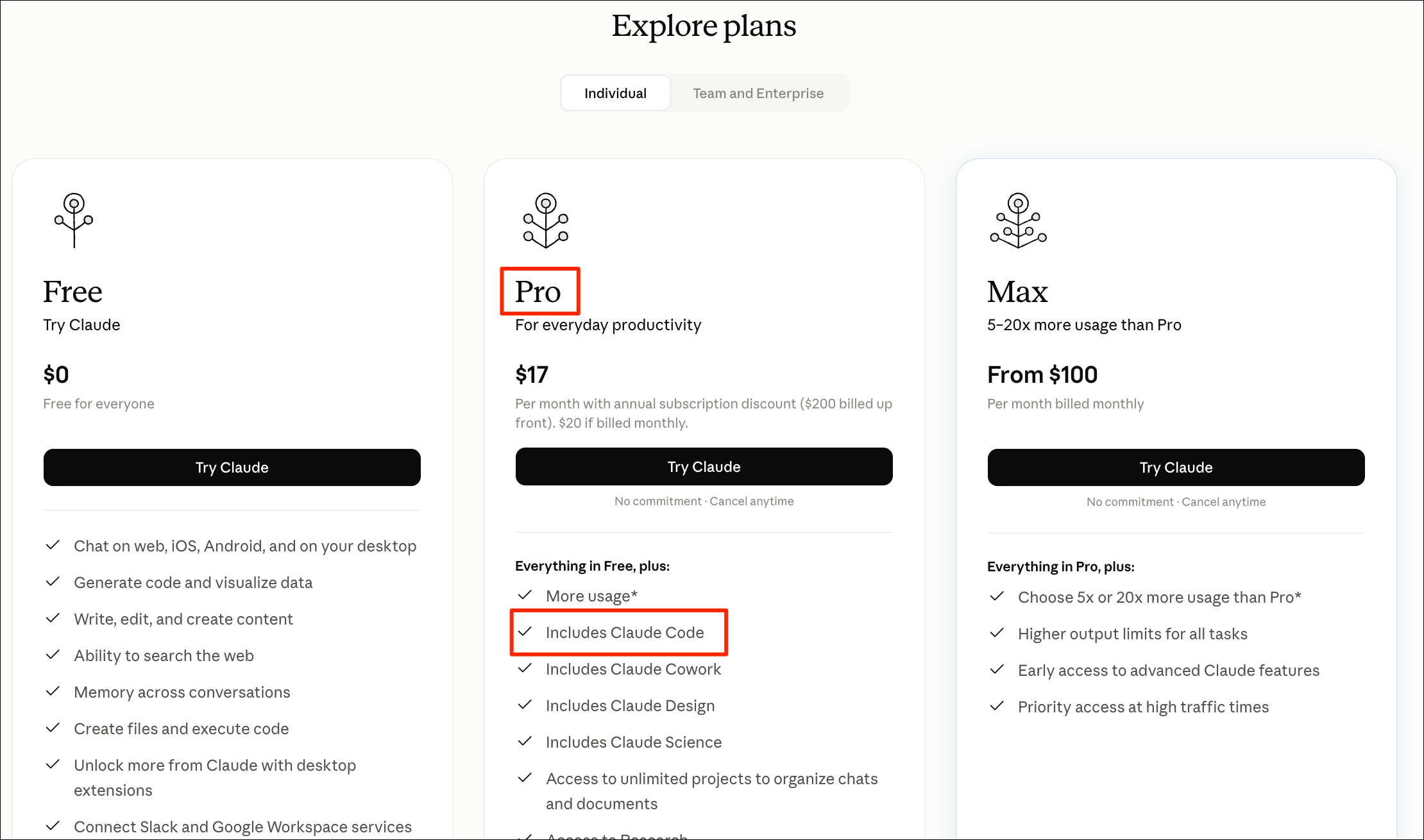
Install Claude Code
You can visit Claude Code Quickstart Guide for official installation guide. We have provided simplified instructions below for our course participants.
Install Claude Code on Windows
- From the Start Menu, search for Windows Powershell and launch it. Paste the following command and press Enter. The installer will run and install Claude Code.
irm https://claude.ai/install.ps1 | iex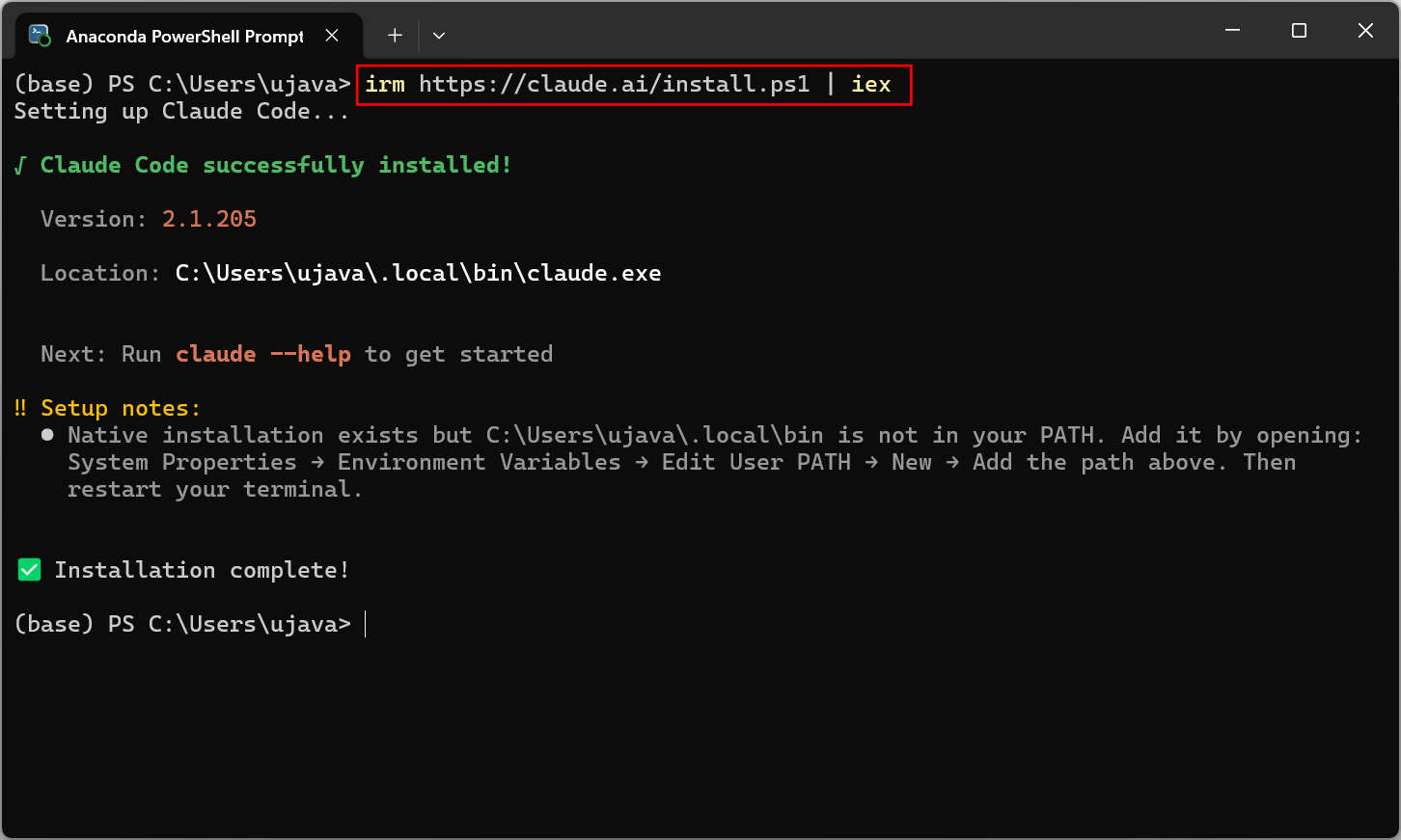
- Next, you need to update the system PATH variable so you can launch
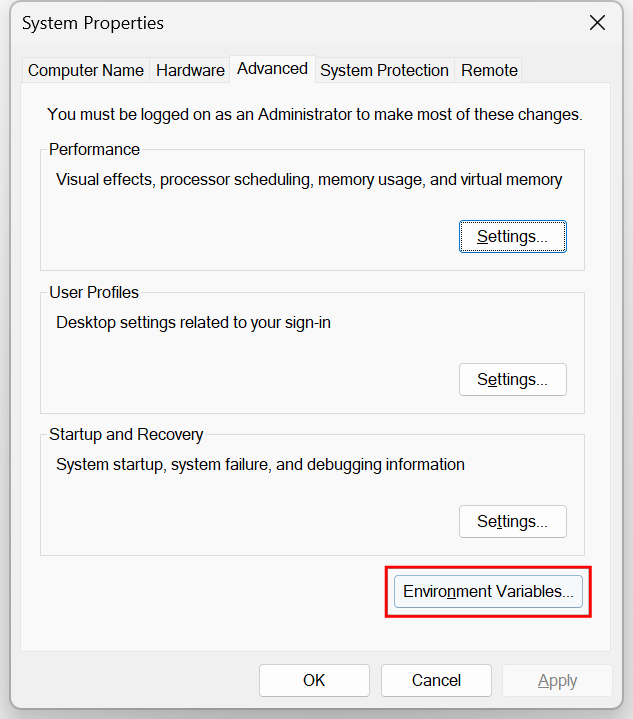
Claude Code from the terminal. Press Windows Key + R, type
sysdm.cpland press Enter. In the System Properties dialog, go to Advanced, and click Environment Variables.
- Locate the Path variable and click Edit….
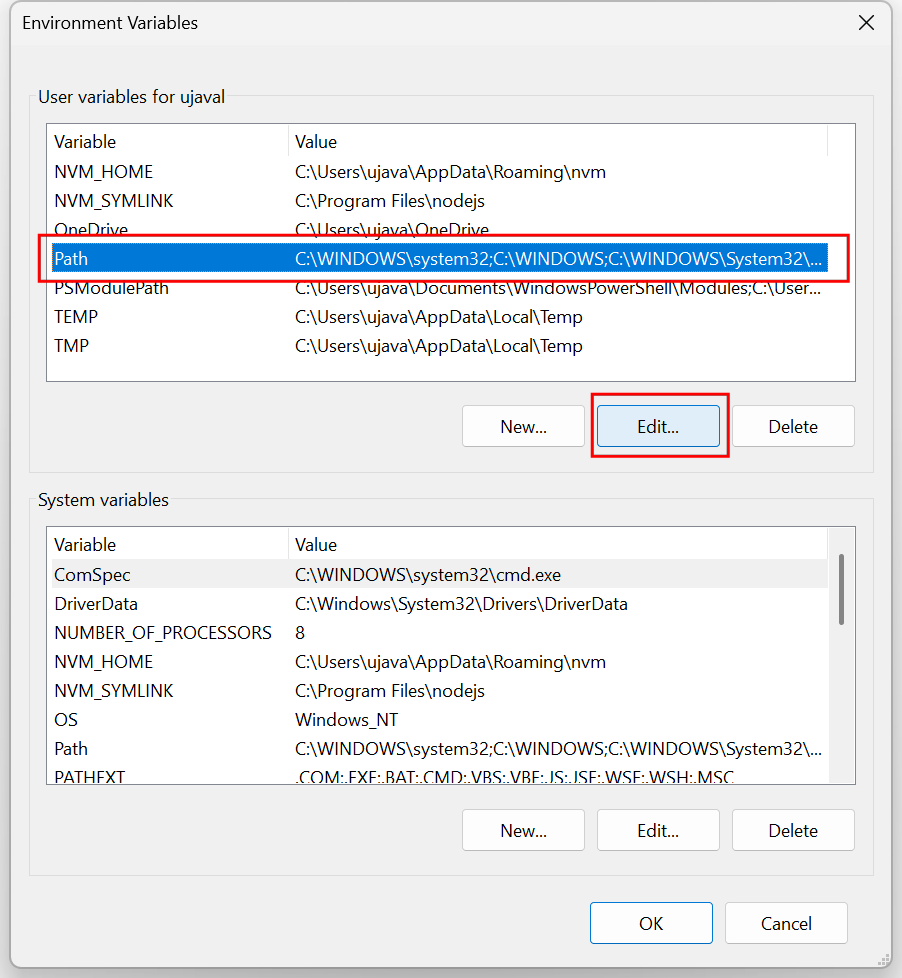
- Click New and enter the following path and click OK
%USERPROFILE%\.local\bin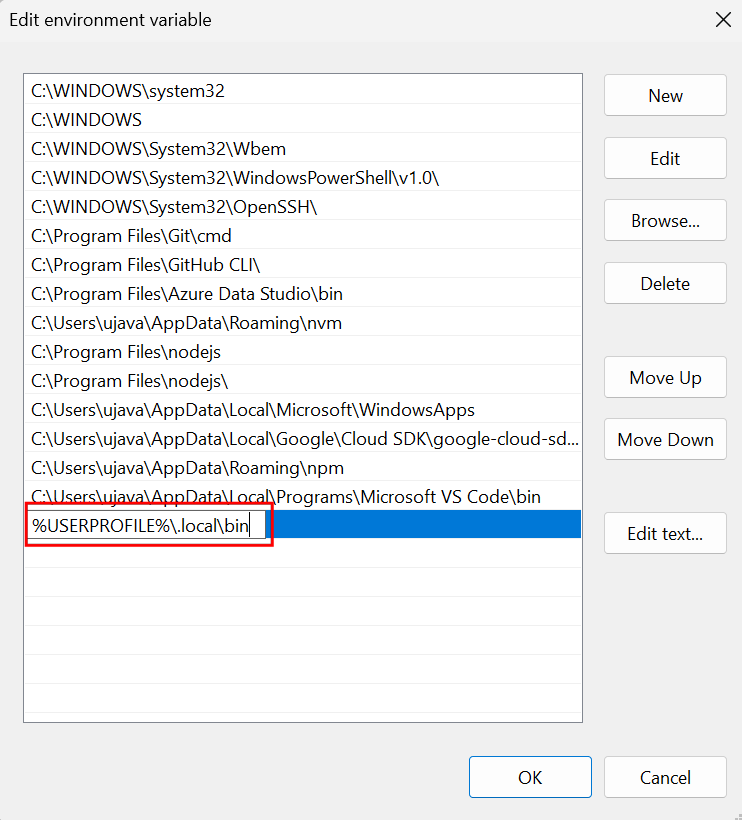
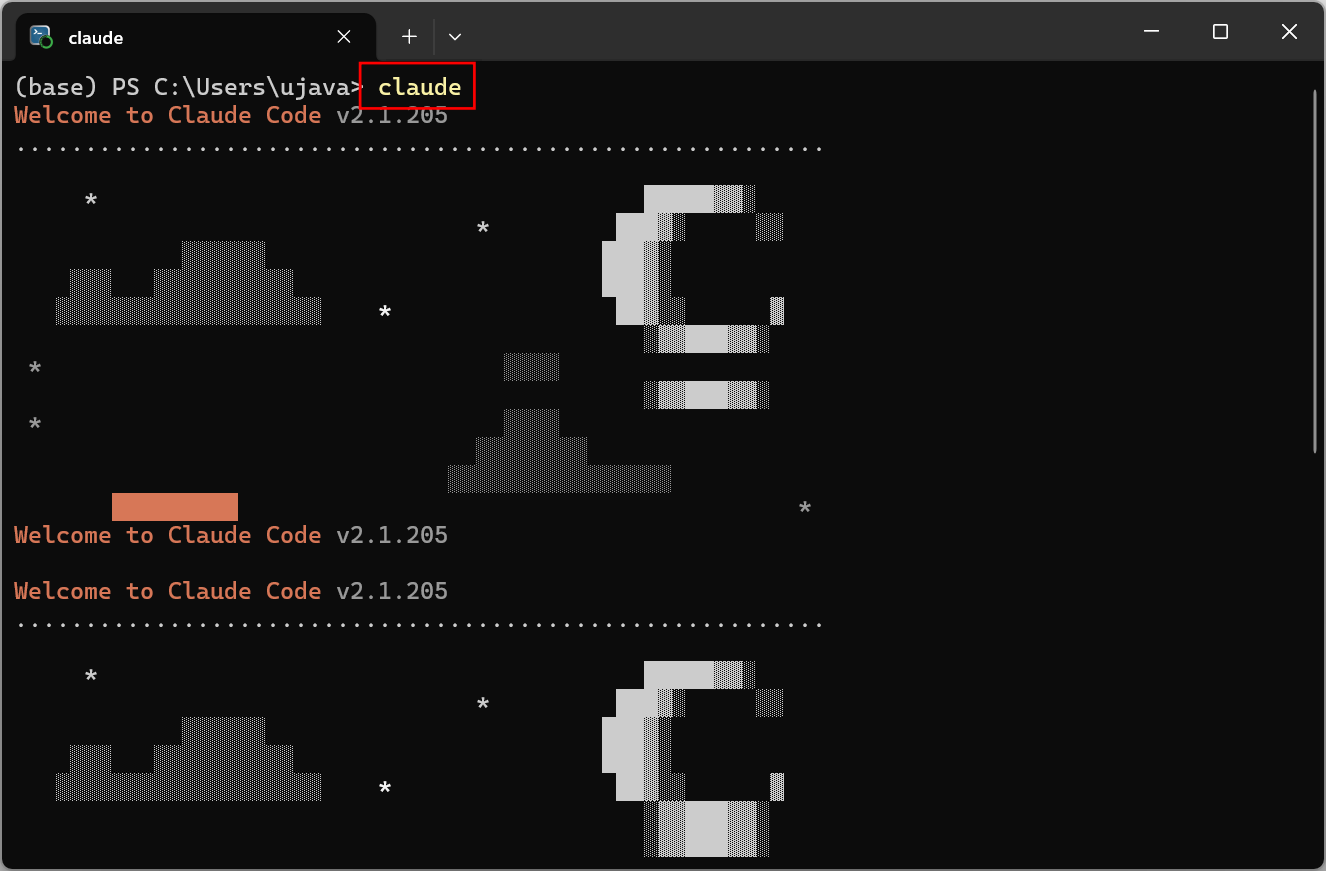
- Once you have updated the PATH variable, close and restart the Powershell window. In the new Powershell window, type the following command to launch Claude Code.
claudeIf you get an error, ensure that you have restarted Powershell after updating the Path.
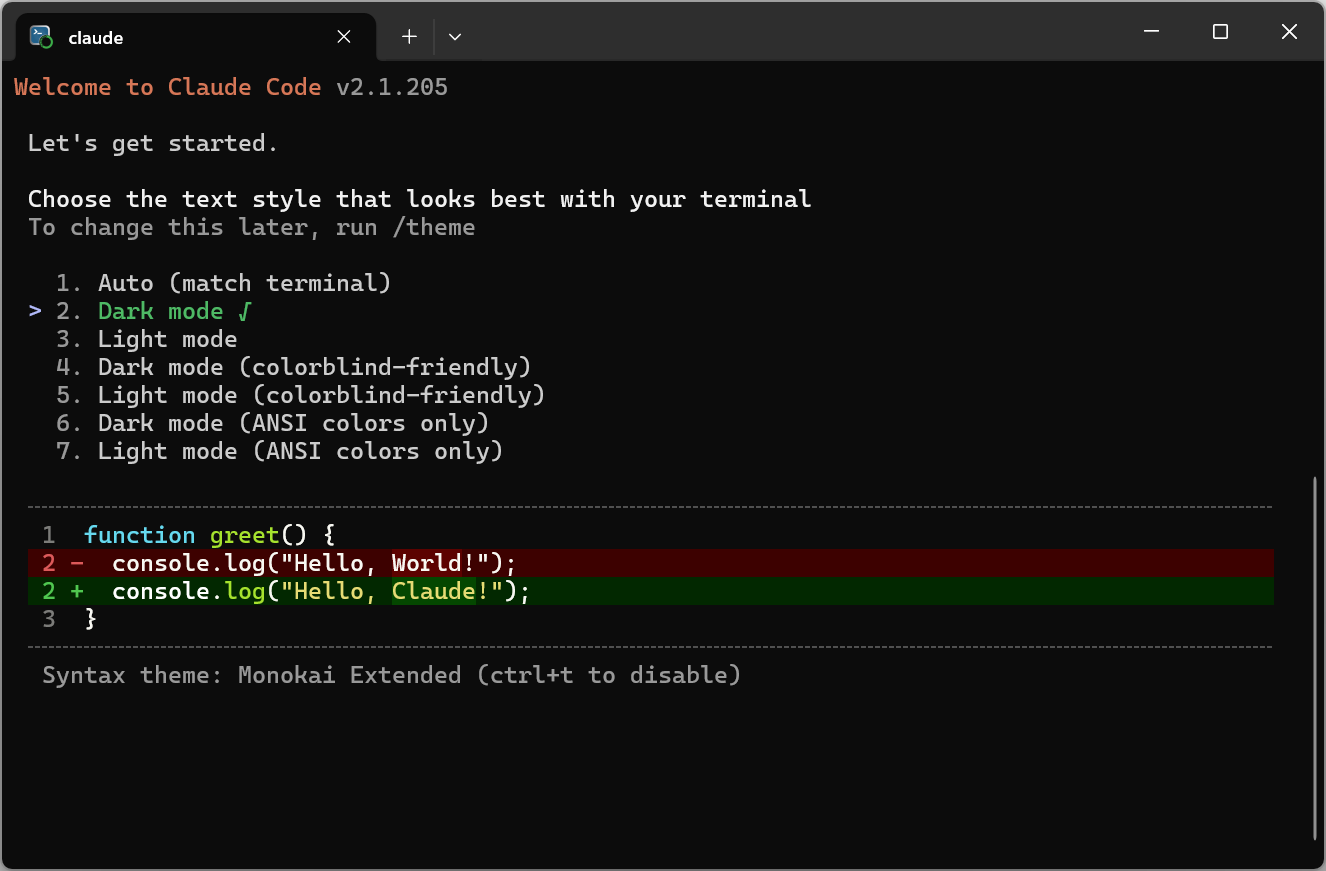
- The first time you launch Claude Code, you will be prompted to choose a theme. Use your arrow keys to pick a theme and press Enter.
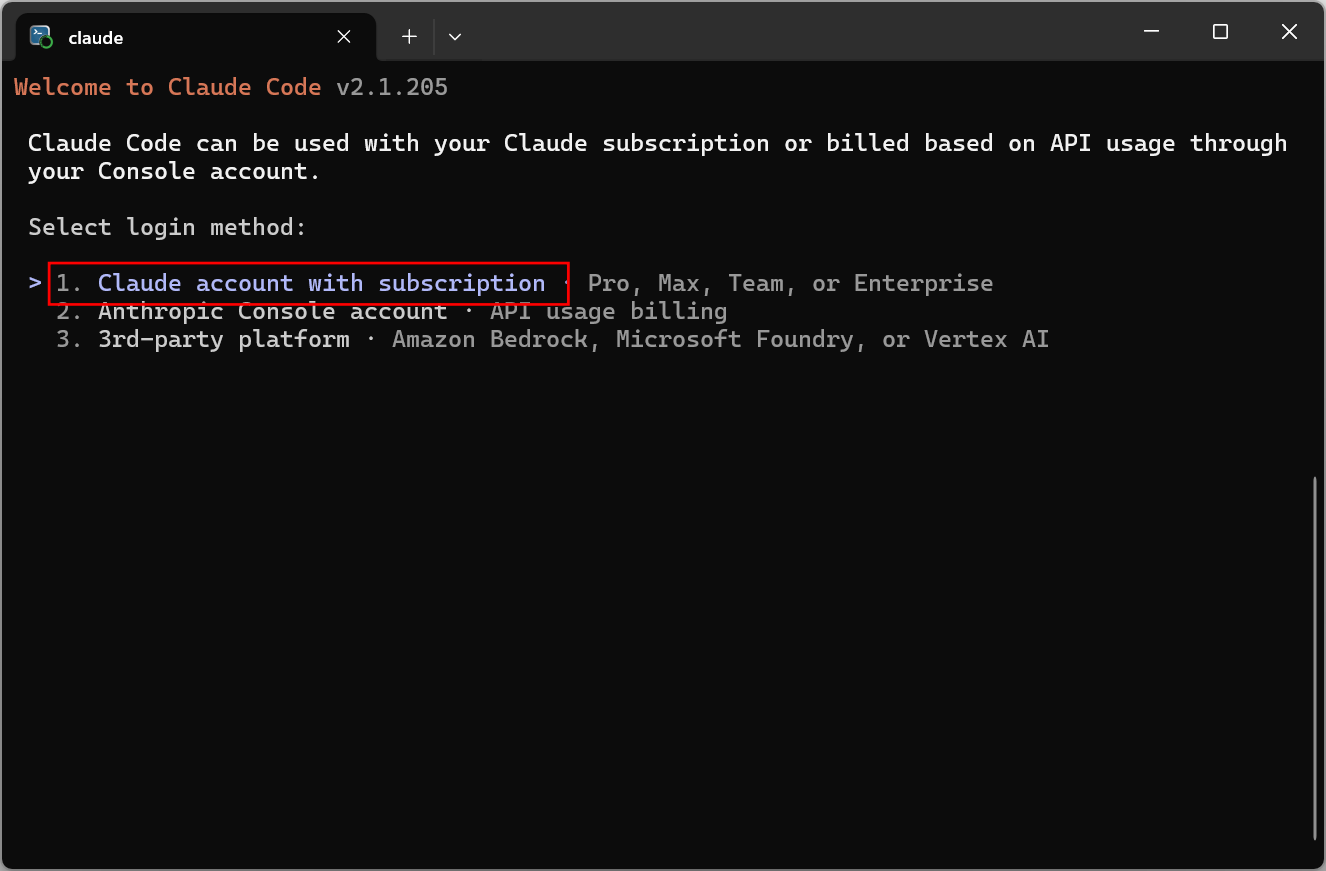
- Next, you will be prompted to login to your account. Choose Claude account with subscription and press Enter. Complete the login process through the browser.
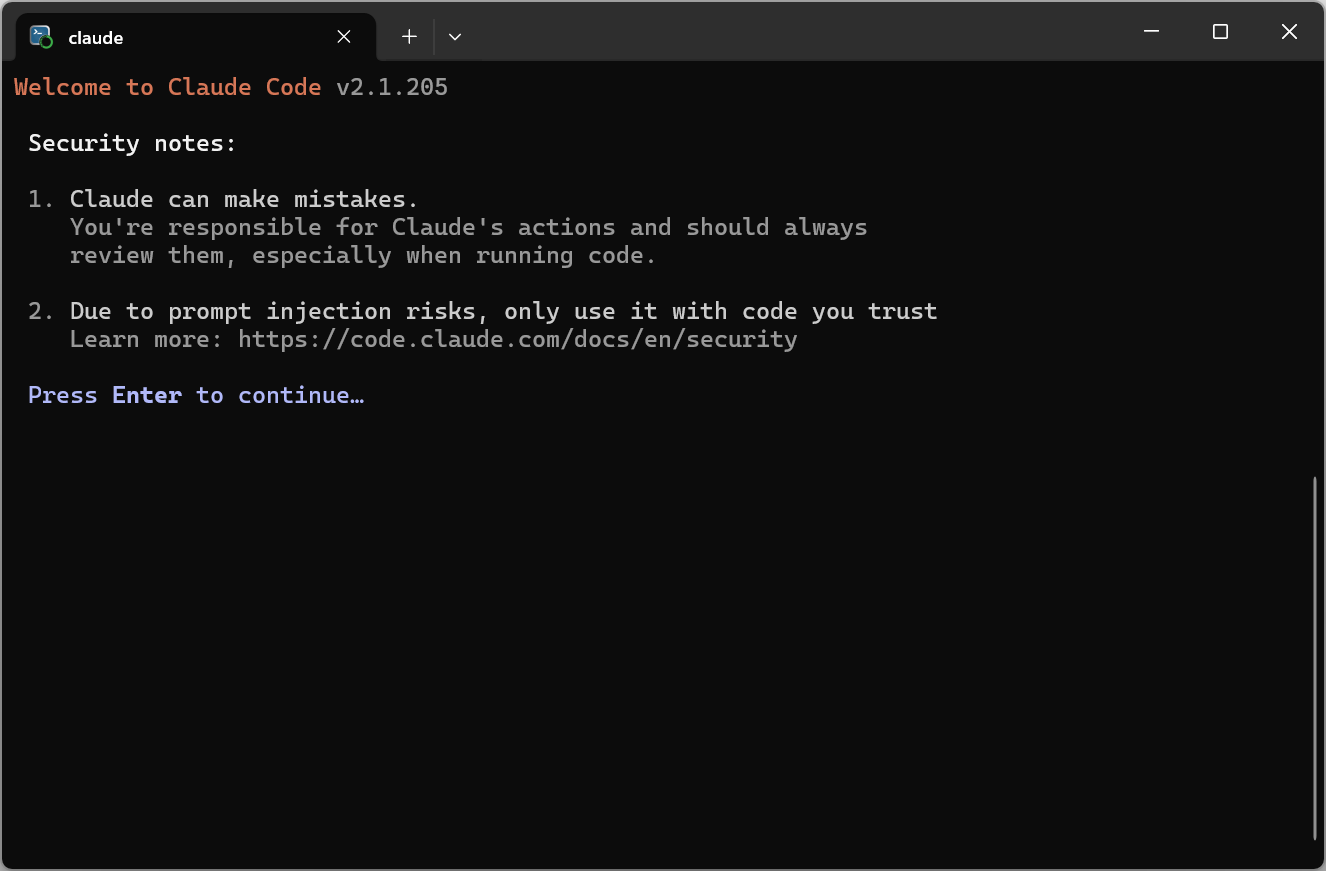
- After successful login, you will be presented with security warnings. Press Enter.
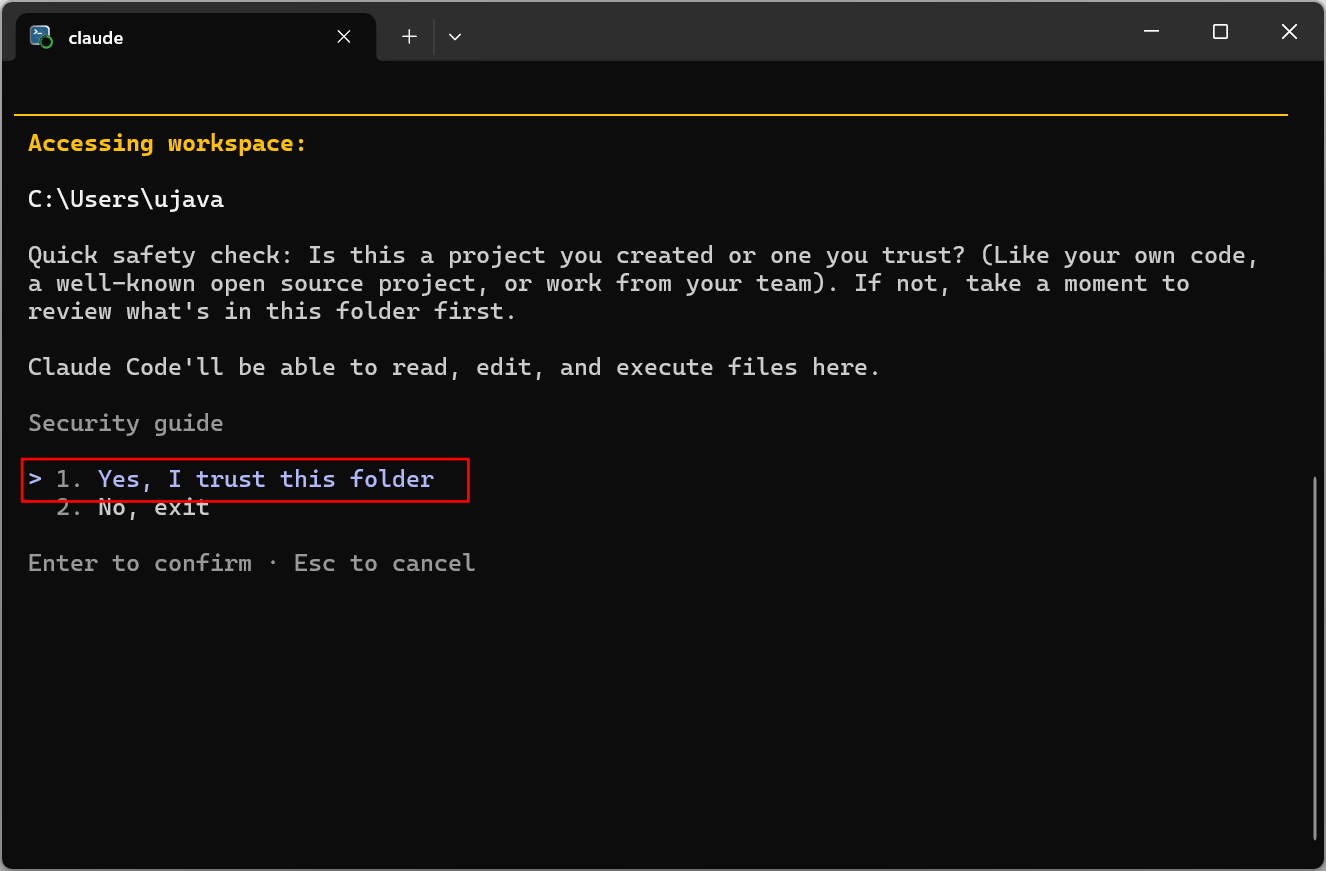
- Claude Code is meant to run from project folders. Since we ran the command from your home directory, you will be presented with another security warning. We will not be doing any work in this folder, so you can safely select Yes, I trust this folder.
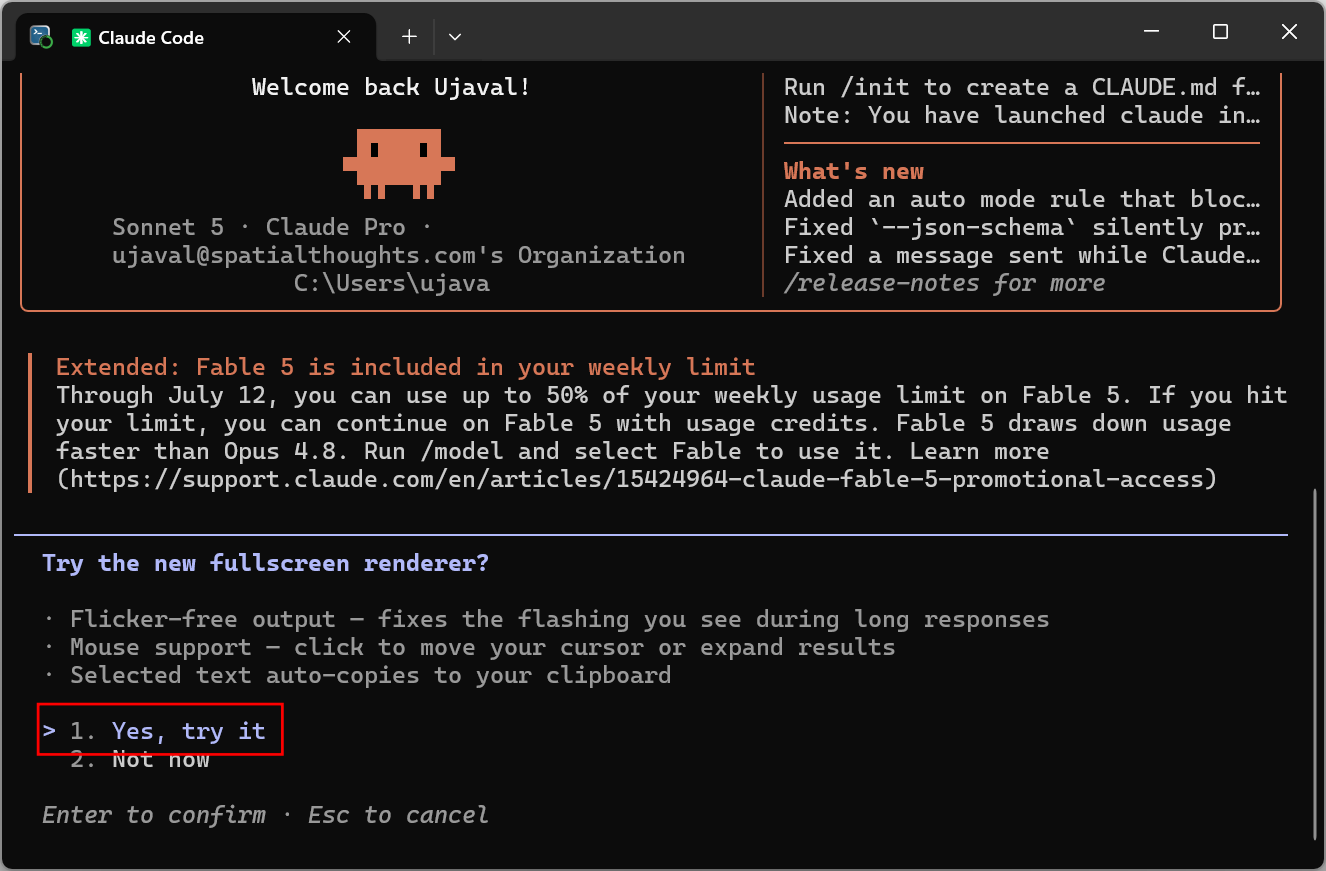
- If you are prompted to try the fullscreen renderer, you can select Yes, try it.
- Once the initialization is complete, you can enter a simple prompt as below. If you get a response back without any errors, your setup is now complete. You can press Ctrl + C to exit Claude Code and close the Powershell window.
hello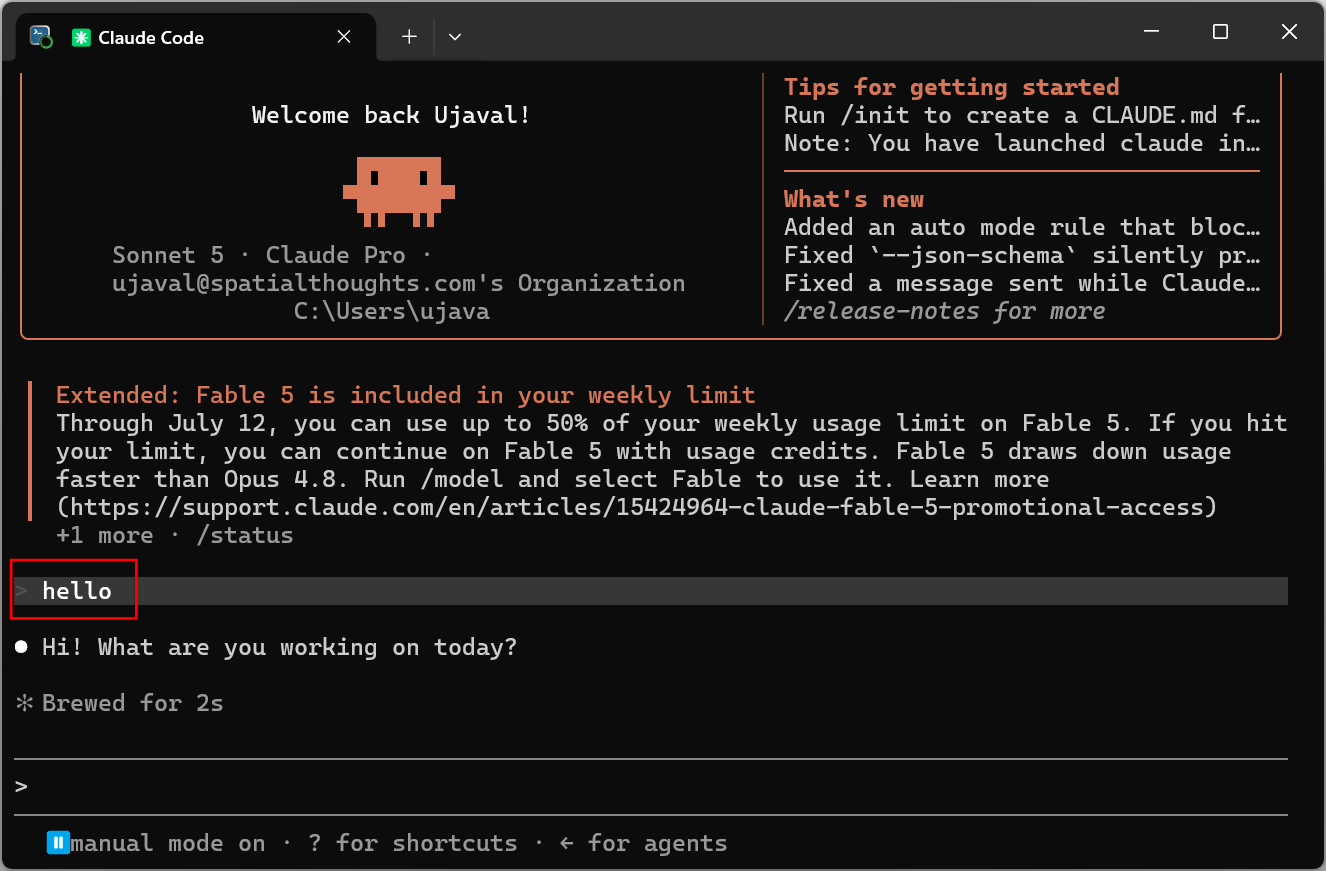
Install Claude Code on Mac
- Open a Terminal window. Paste the following command and press Enter.
curl -fsSL https://claude.ai/install.sh | bash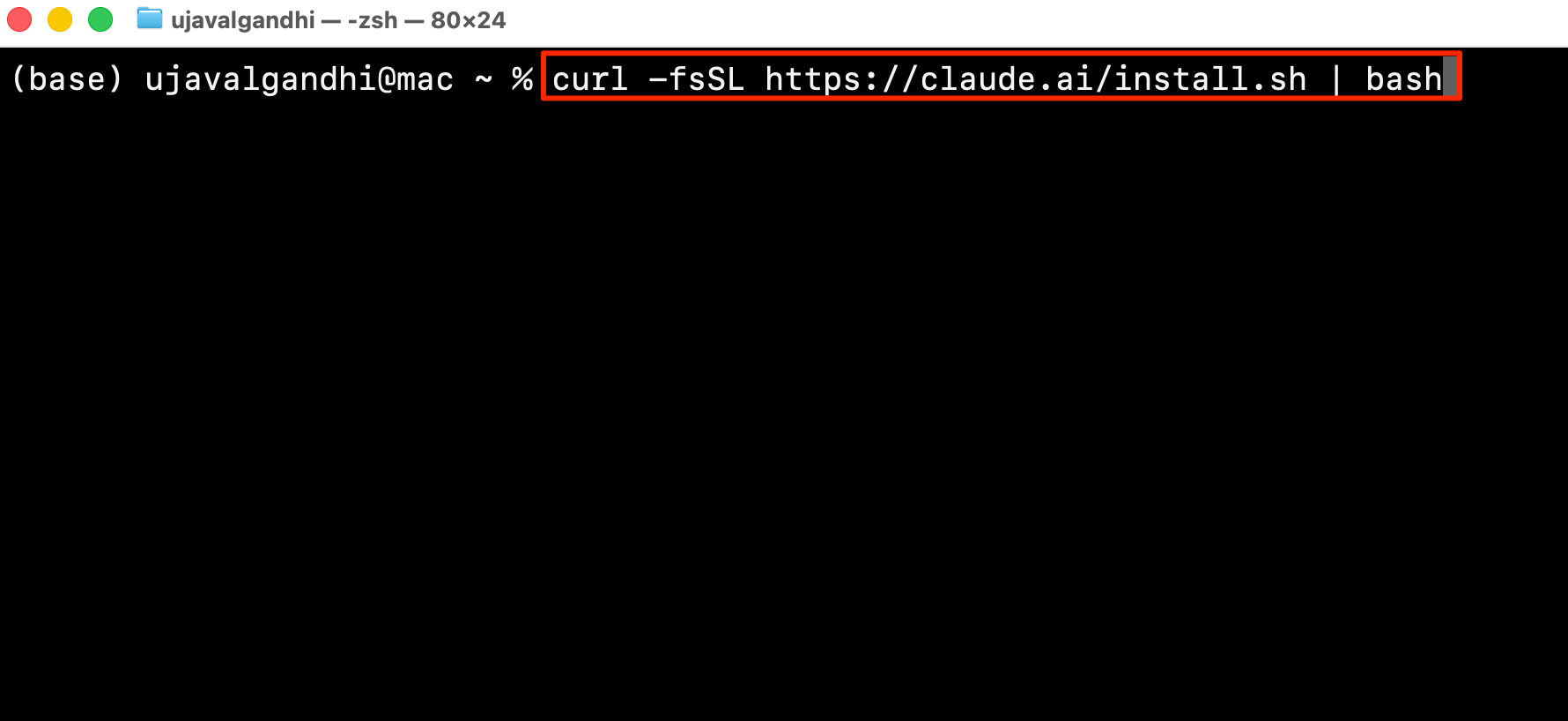
- The installer will run and install Claude Code.
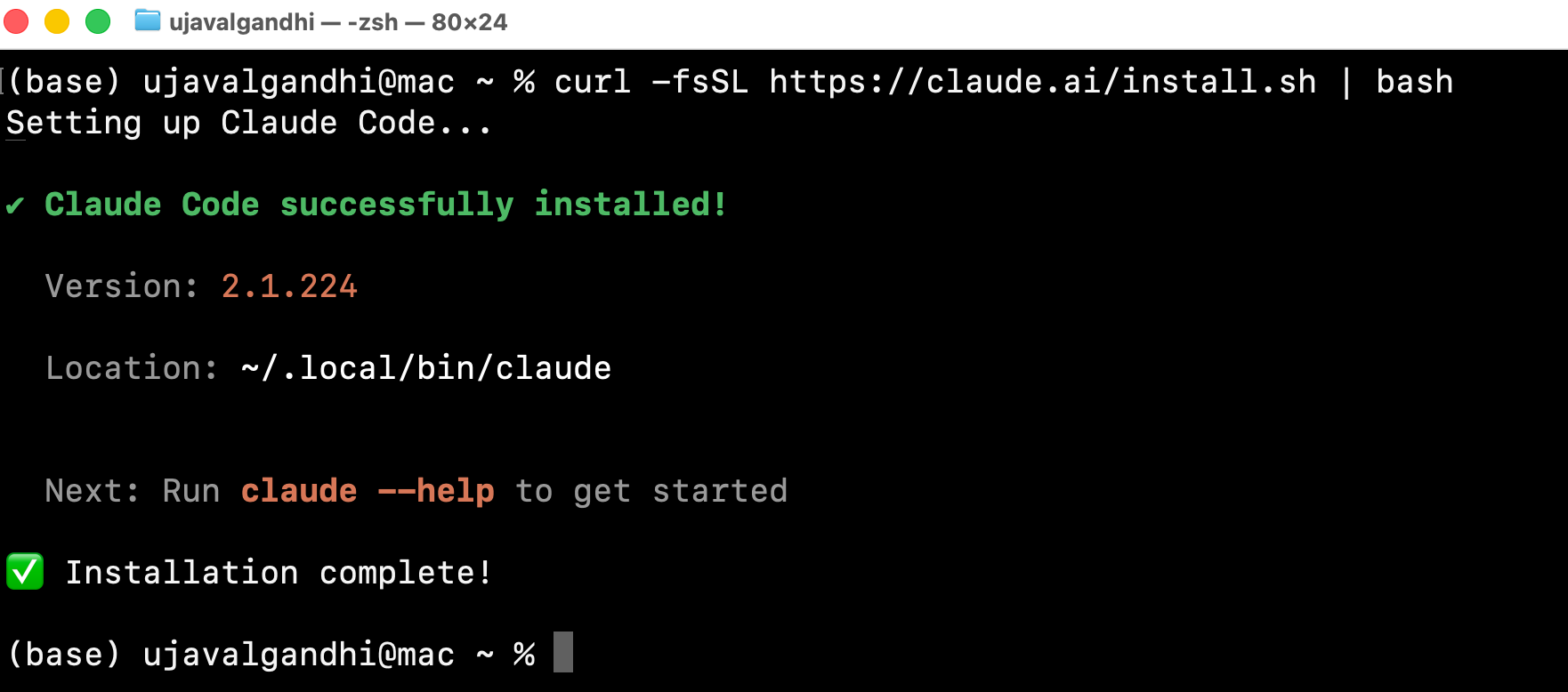
- In case, you get a warning that the installation is not in your PATH, run the command displayed in the output.
If you do not get this warning, skip this step.
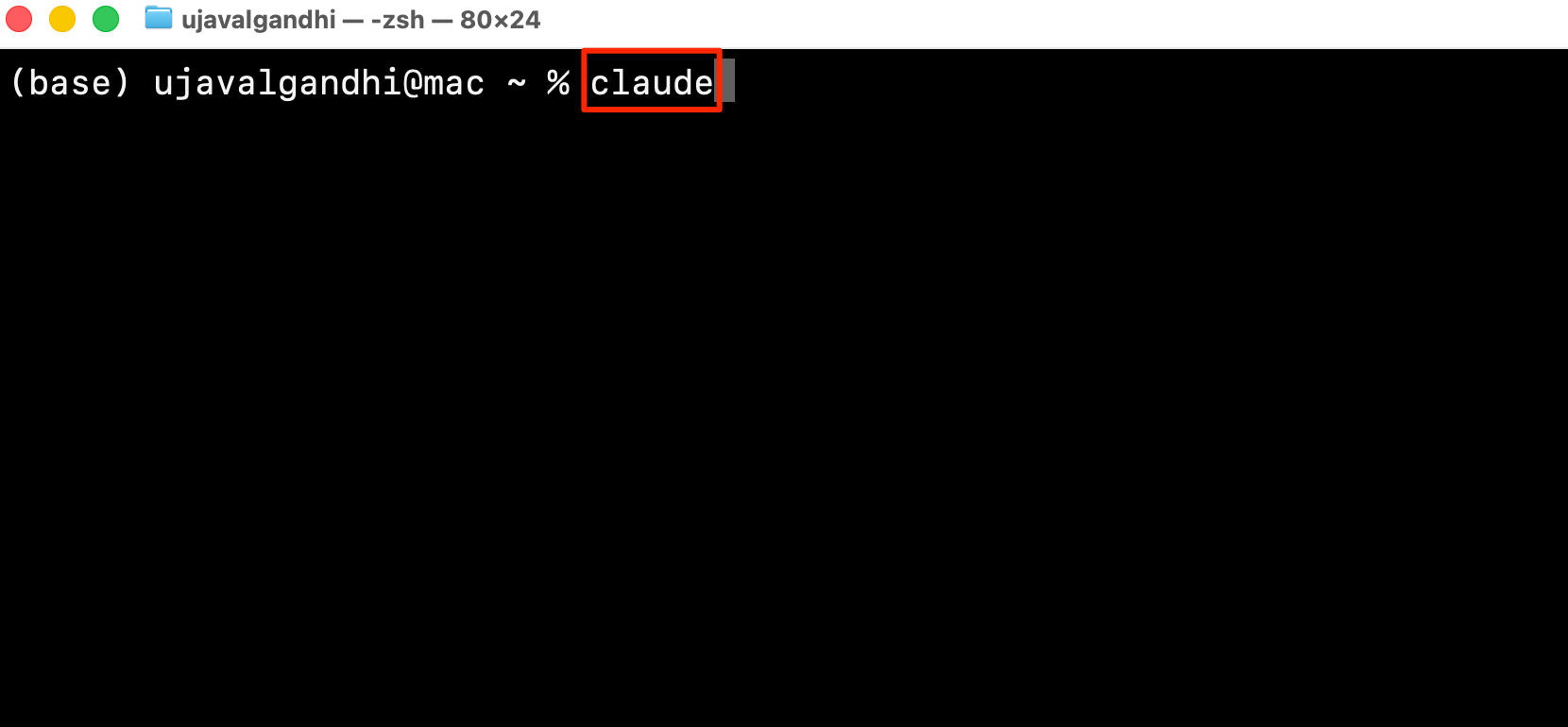
- Once installed, type the following command to launch Claude Code.
claude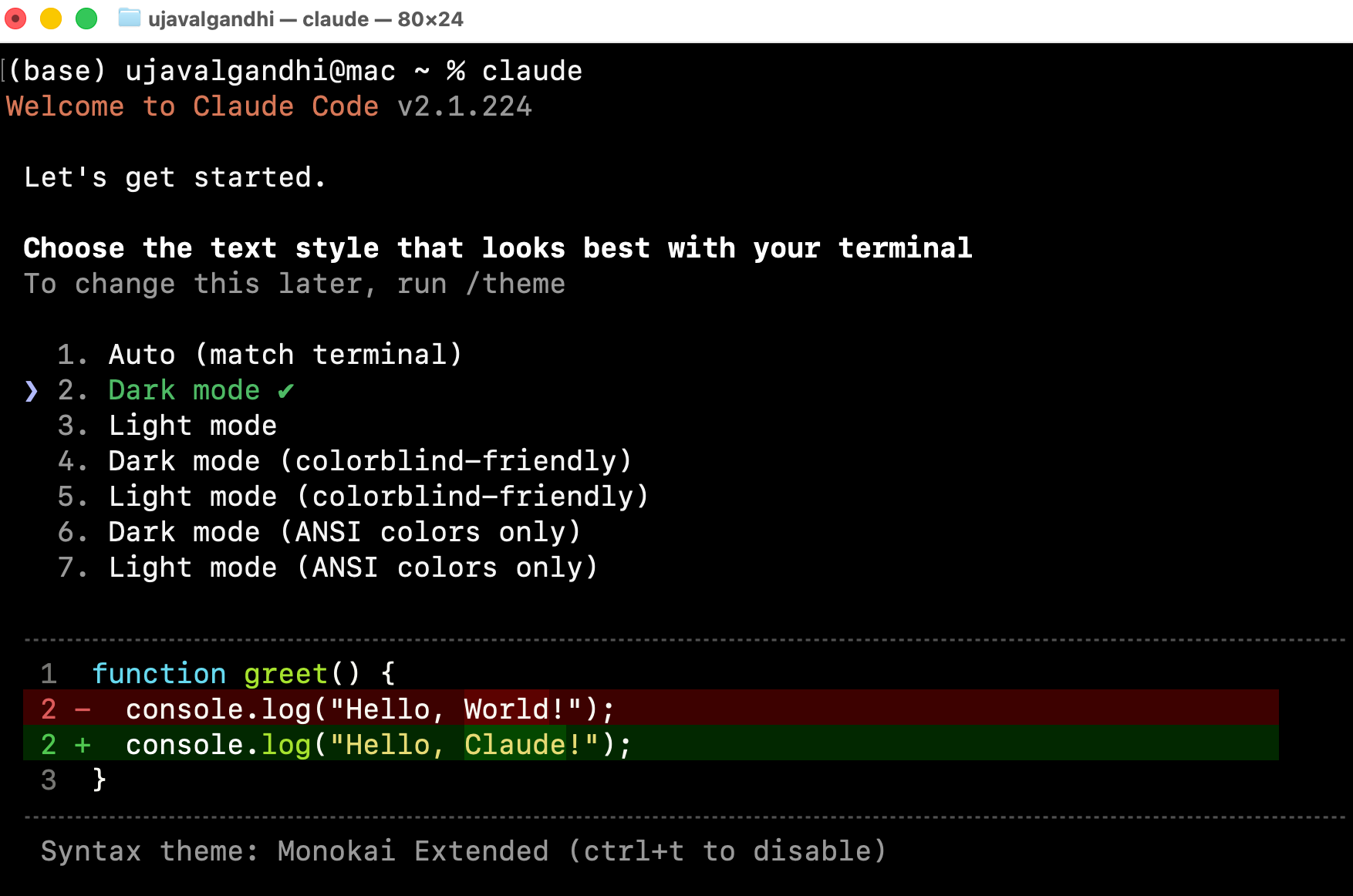
- The first time you launch Claude Code, you will be prompted to choose a theme. Use your arrow keys to pick a theme and press Enter.
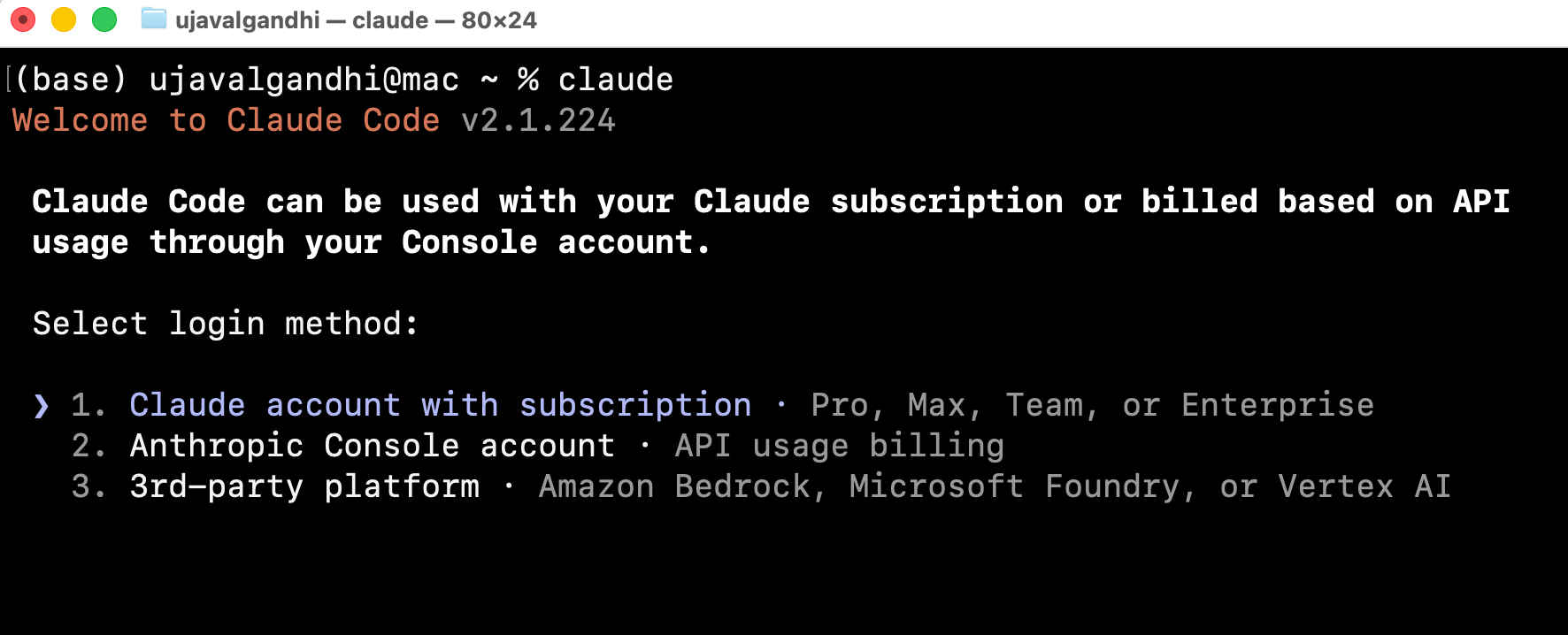
- Next, you will be prompted to login to your account. Choose Claude account with subscription and press Enter. Complete the login process through the browser.
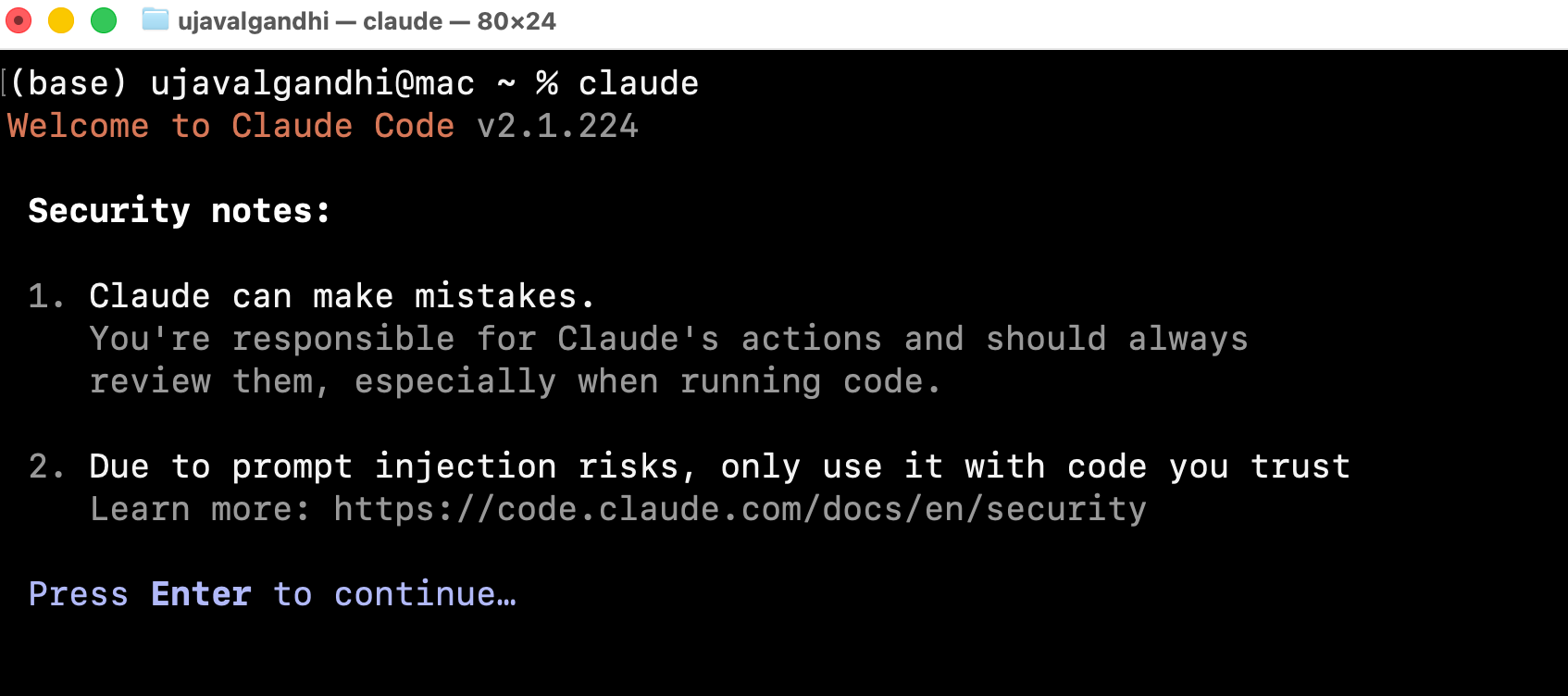
- After successful login, you will be presented with security warnings. Press Enter.
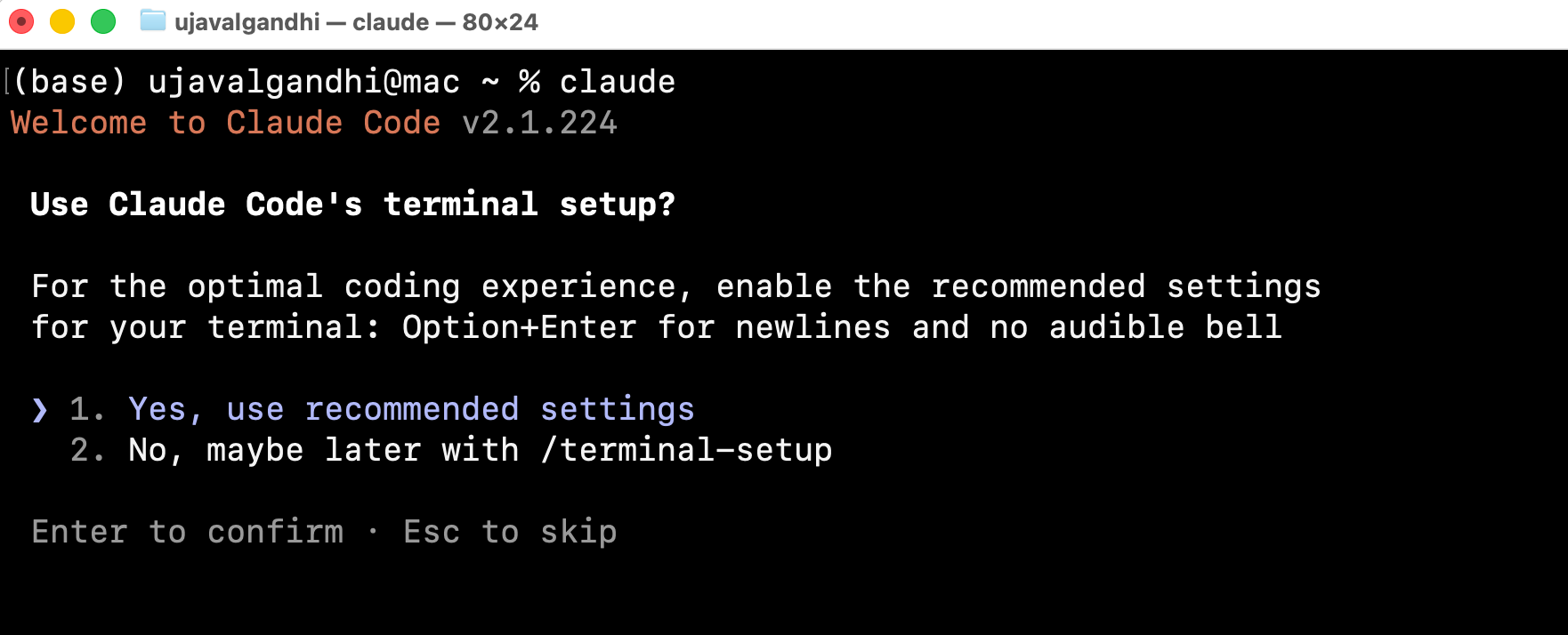
- You will be prompted to choose your preference for the terminal setup. Select Yes, use recommended settings.
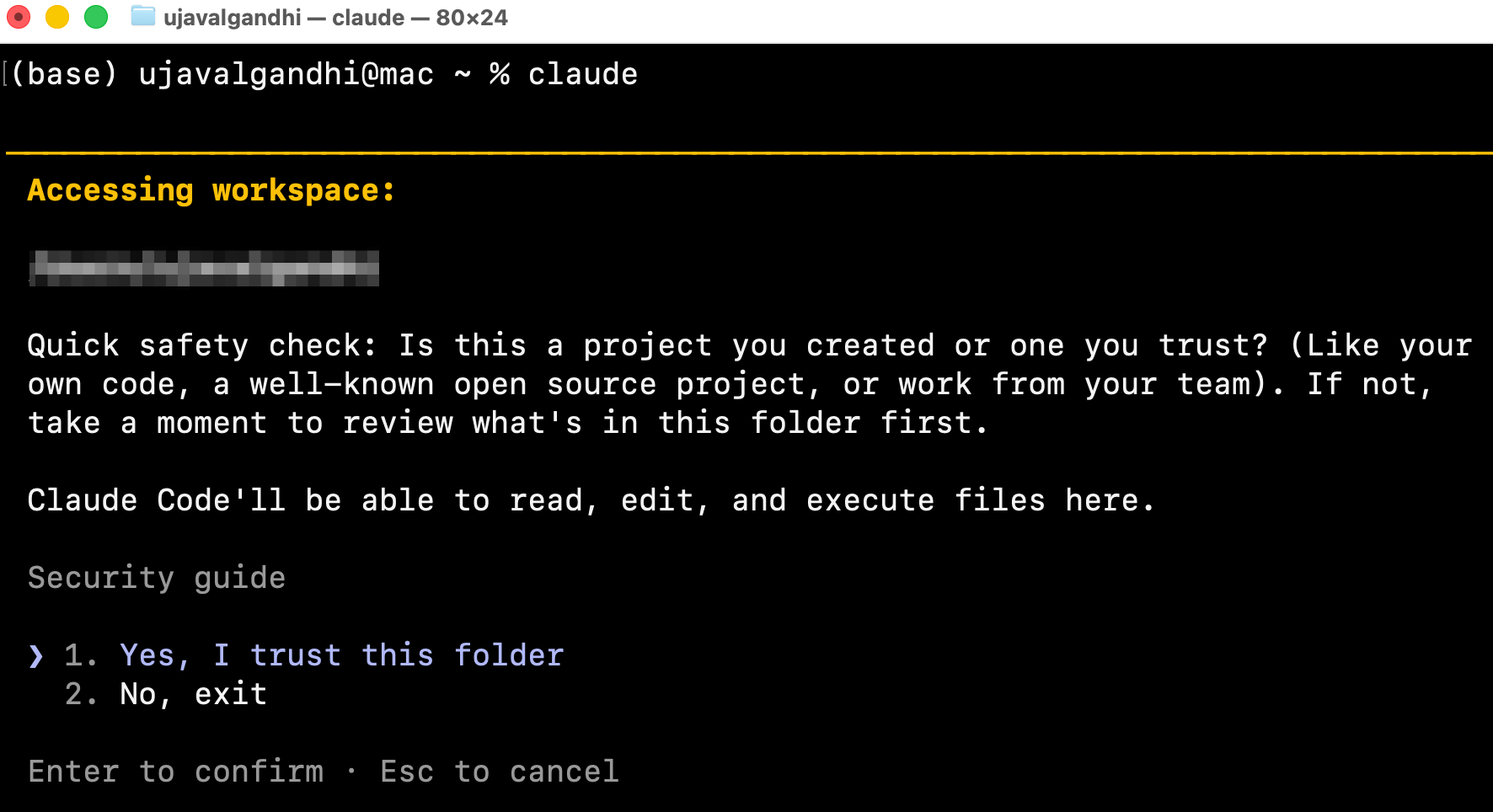
- Claude Code is meant to run from project folders. Since we ran the command from your home directory, you will be presented with another security warning. We will not be doing any work in this folder, so you can safely select Yes, I trust this folder.
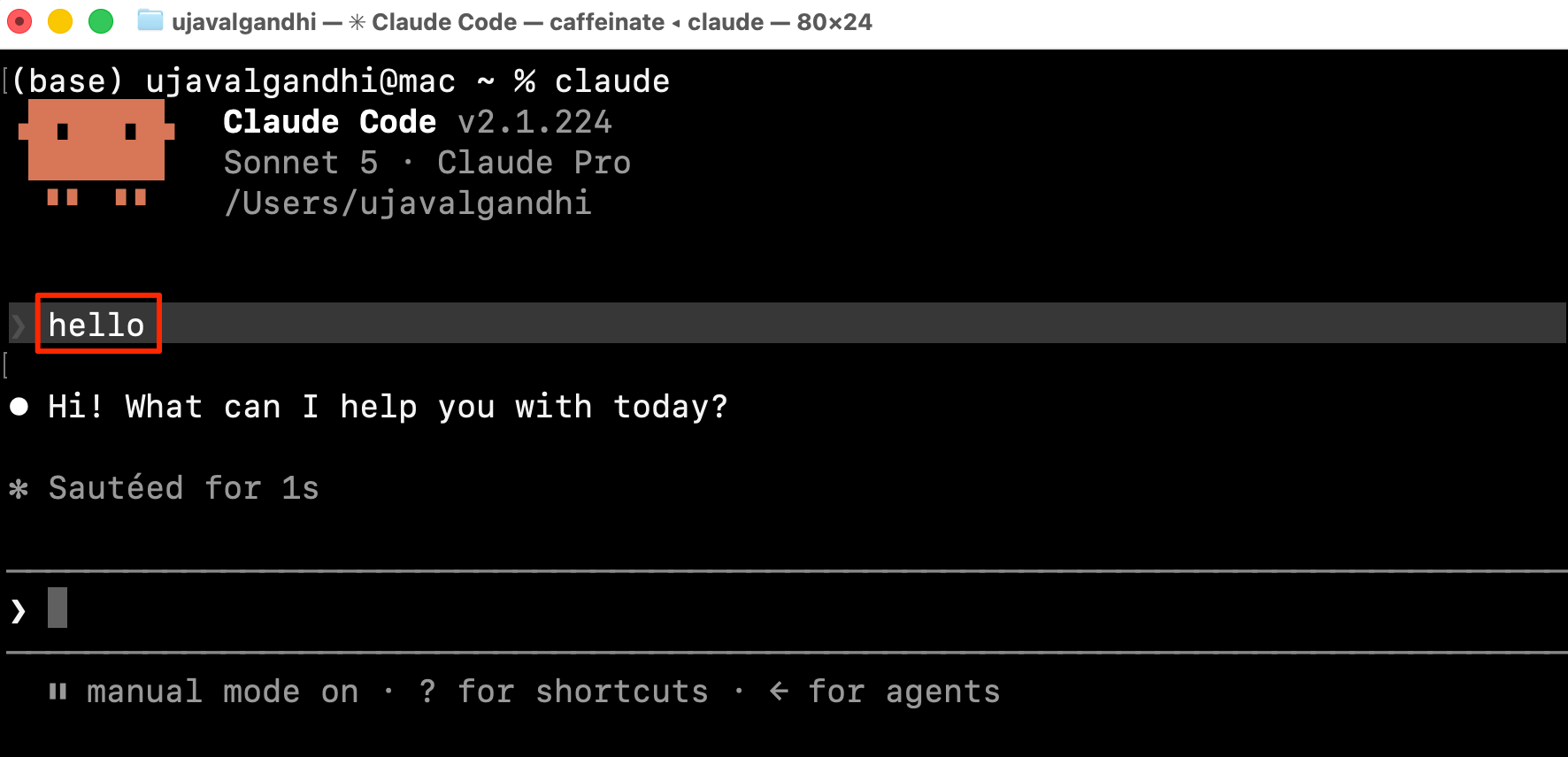
- Once the initialization is complete, you can enter a simple prompt as below. If you get a response back without any errors, your setup is now complete. You can press Ctrl + C to exit Claude Code and close the Terminal window.
hello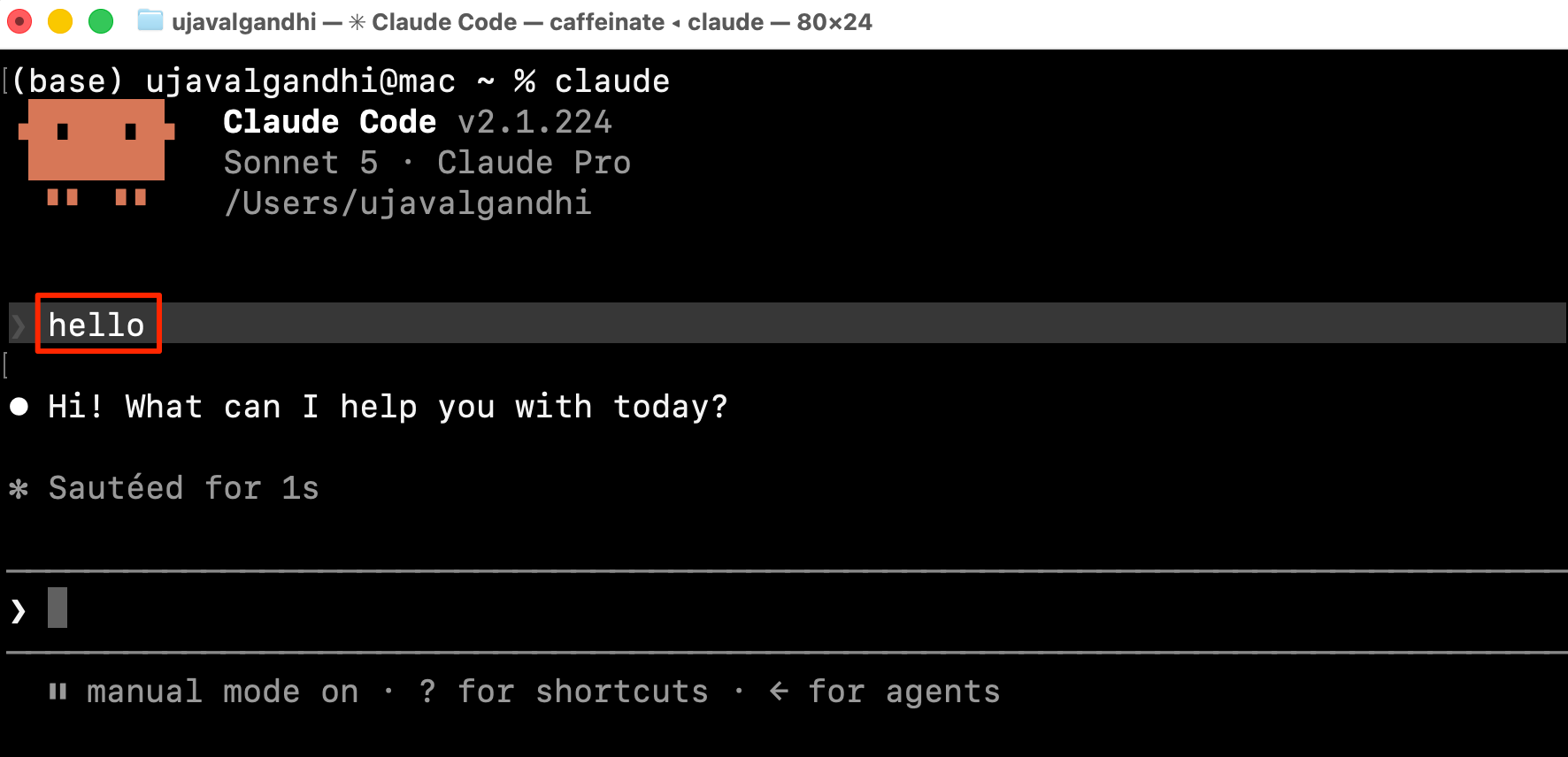
Install Claude Code on Linux
Claude Code has beta installers available for Ubuntu and Debian. You can visit Claude Code on Linux for detailed installation instructions.
If you want to report any issues with this page, please comment below.