Git and GitHub CLI Installation Guide
A Step-by-step guide for Git and GitHub installation and configuration.
Install Git
Windows
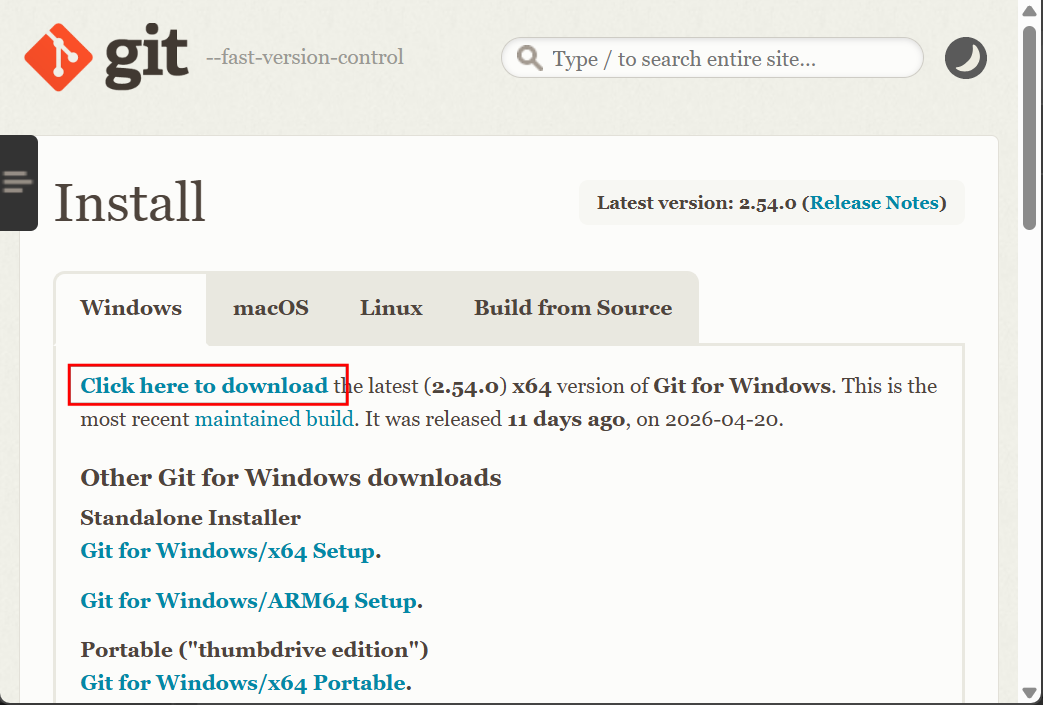
- Go to git-scm.com and download the latest version of Git for Windows. During install, accept all defaults.
Mac
Most versions of MacOS will already have Git installed, and you can activate it through the terminal. Open Terminal and run the following command. If Git is installed, it will print the version. If it is not installed, macOS will prompt you to install it.
git --version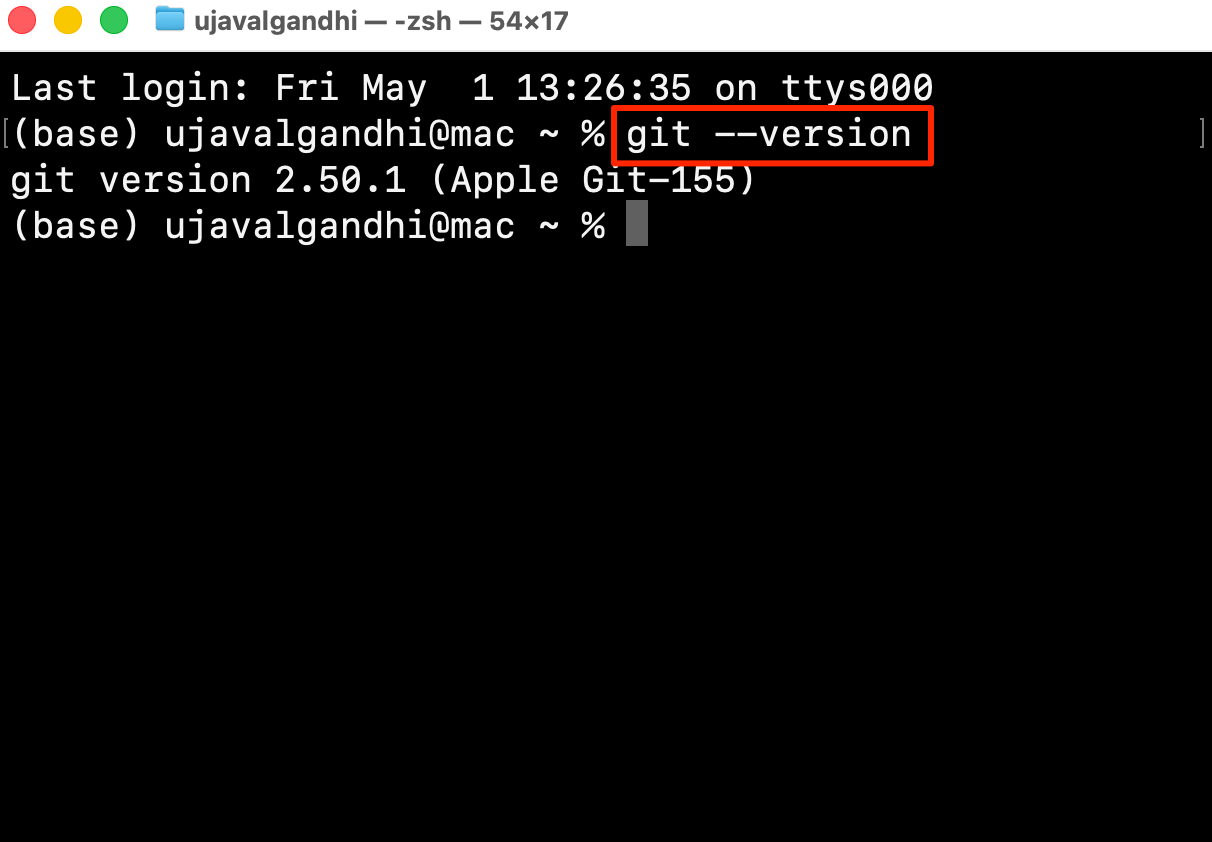
Linux
You can install Git via the package management tool for your Linux distribution. GitHub has a detailed Install Git for Linux guide with instructions for different operating systems.
Configure Git
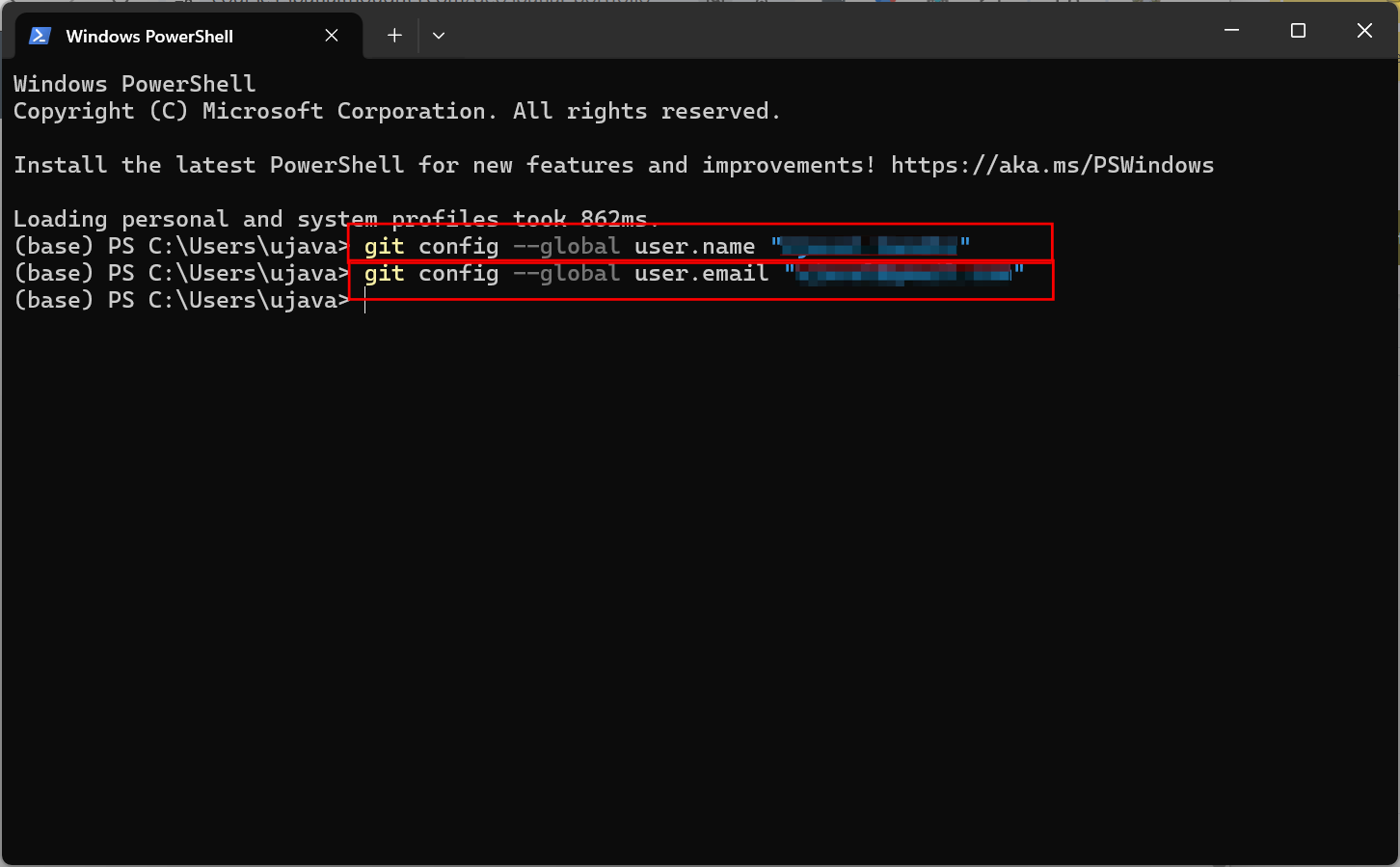
Once installed, (Windows users), search for Windows Powershell and launch it. (Mac/Linux users): Launch a Terminal window.
Run the following commands to set your name and email. Make sure to
change <Your Name> and
<your-email@example.com> with your own details.
Install GitHub CLI
GitHub offers a Command-Line Interface (CLI) to manage your GitHub account. We will install and configure it so you can push updates to your GitHub repositories.
Windows
Search for Windows Powershell and launch it. Enter the following command and follow the installation prompts.
winget install --id GitHub.cli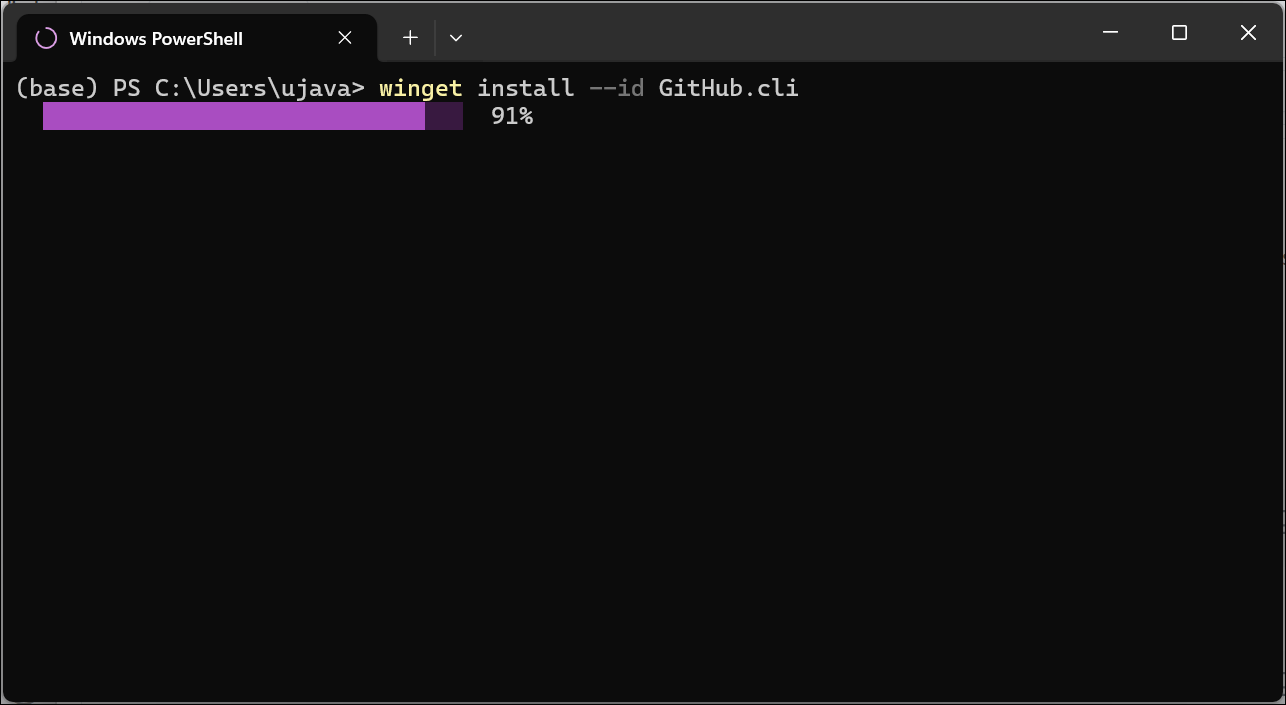
In case you have trouble with this method, Github also offers pre-compiled binaries that can be downloaded and installed directly.
Mac
You can install the GitHub CLI via Homebrew. In case you do not have Homebrew install, head over to Homebrew and install it first.
Open a Terminal and enter the following command
brew install gh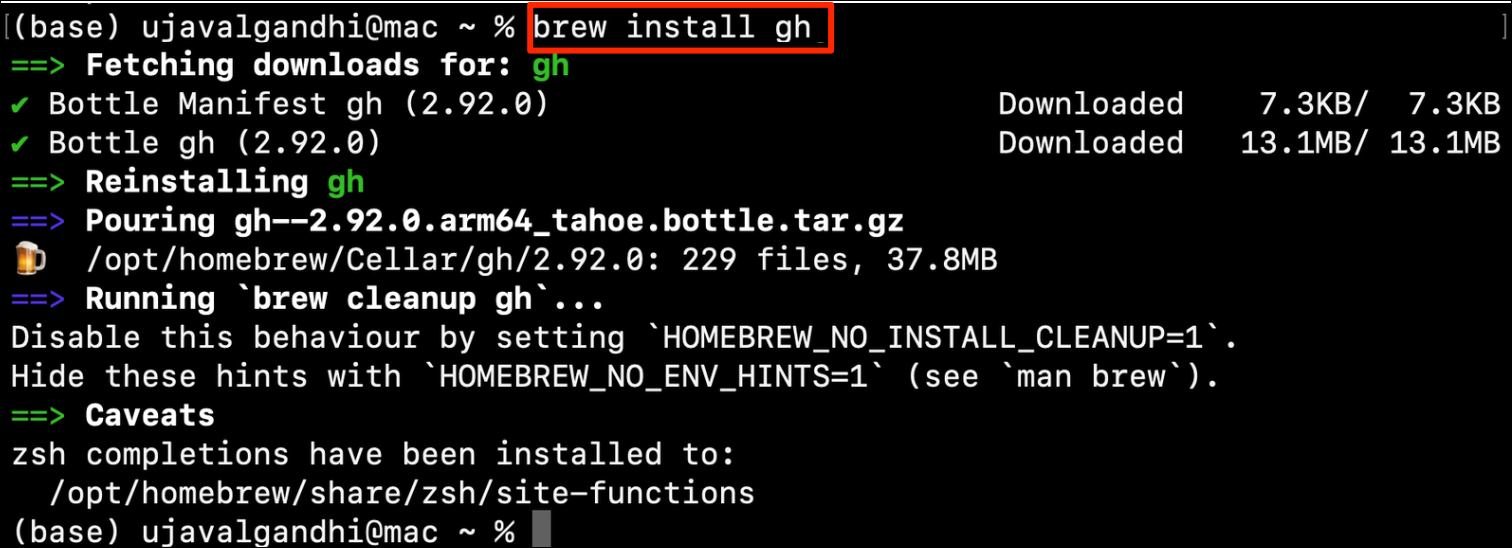
In case you have trouble with this method, Github also offers pre-compiled binaries that can be downloaded and installed directly.
Linux
Visit GitHub CLI Linux & Unix Installation guide for instructions for your distribution.
Configure GitHub CLI
You will need a GitHub account for this section. If you do not have one, visit GitHub.com and create a free account.
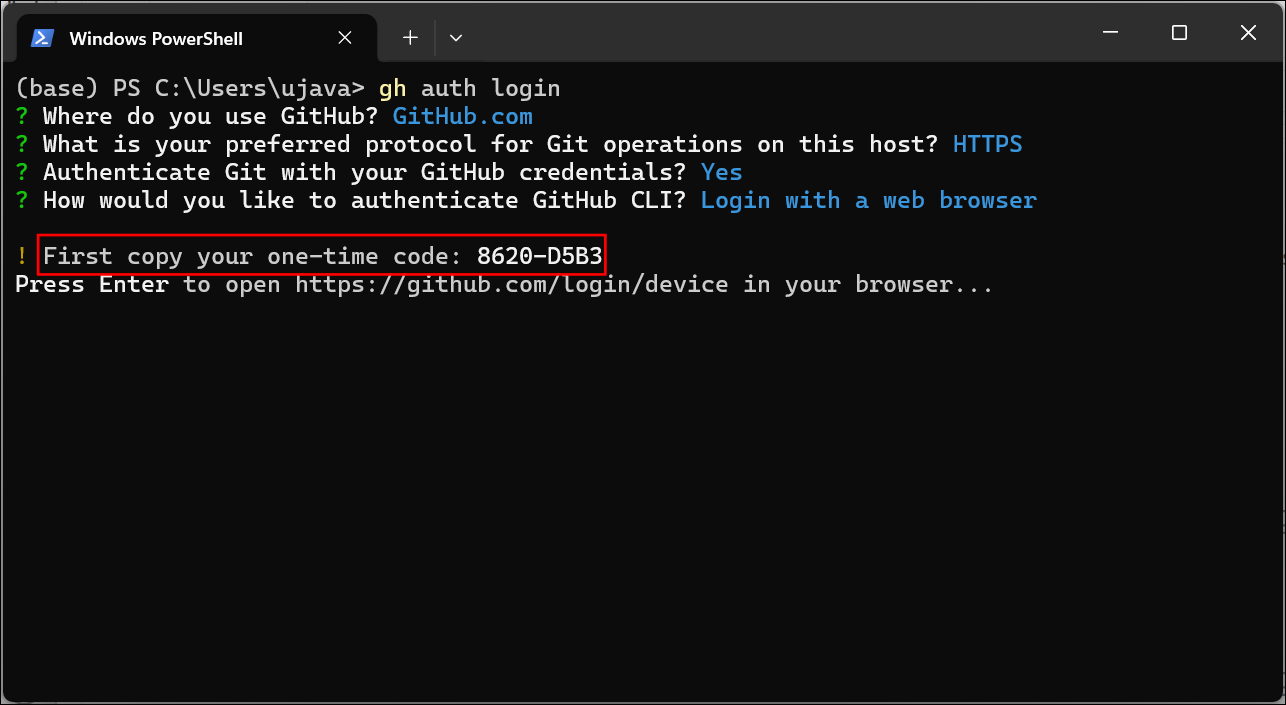
- (Windows users), search for Windows Powershell and launch it. (Mac/Linux users): Launch a Terminal window. Enter the following command to sign-in to your GitHub account.
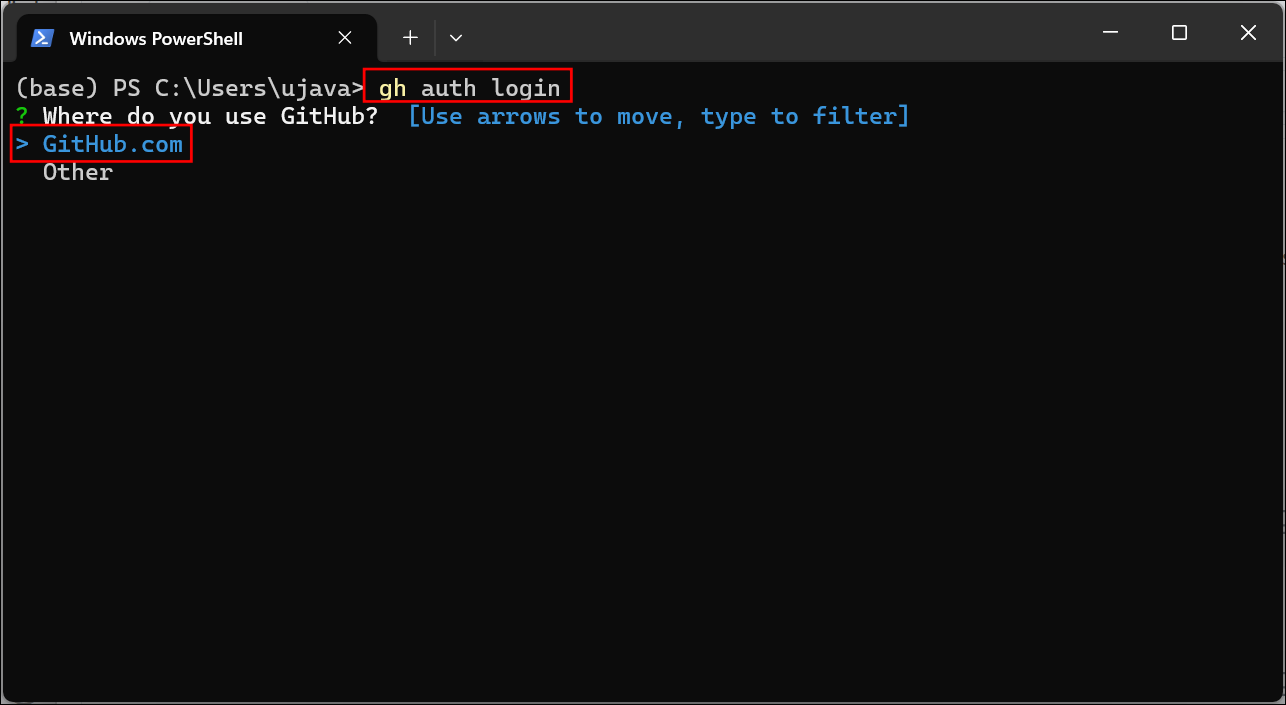
- Select
GitHub.comas the response for Where do you use GitHub? and press Enter. Next, selectHTTPSas the response for What is your preferred protocol for Git operations on this host? and press Enter.
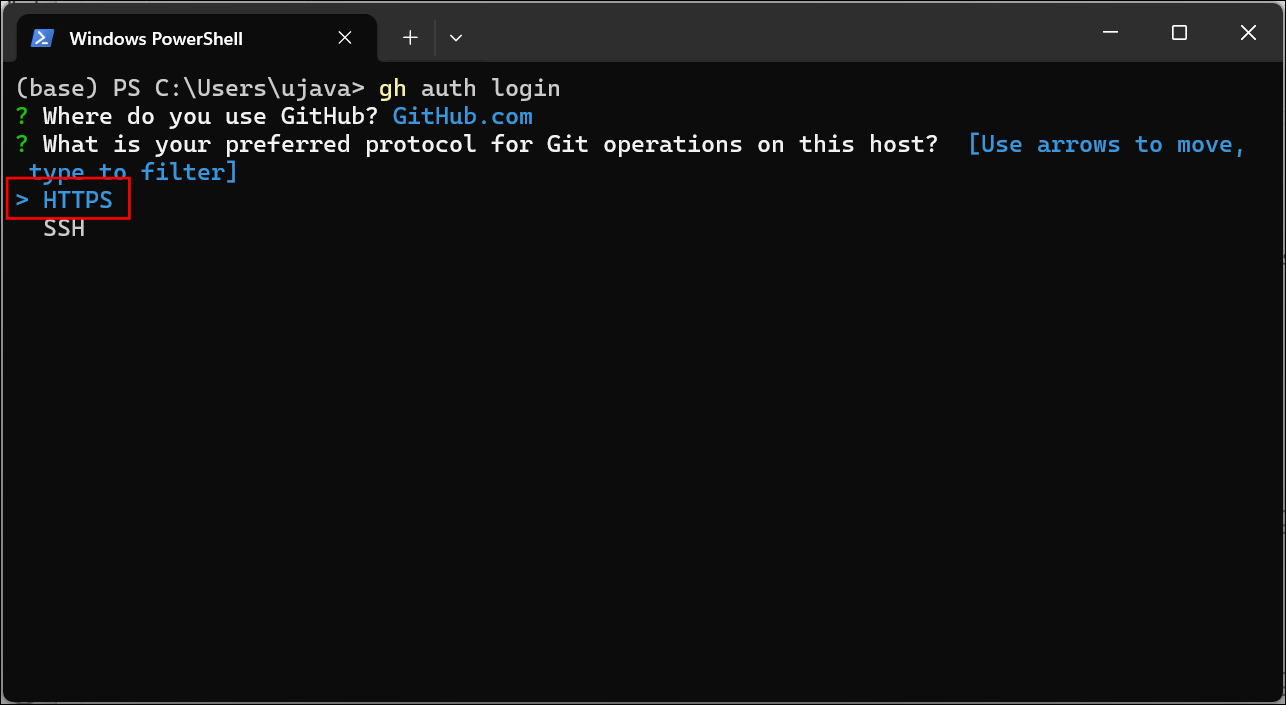
- Choose
Login with a web browseras the option for How would you like to authenticate GitHub CLI? and press Enter.
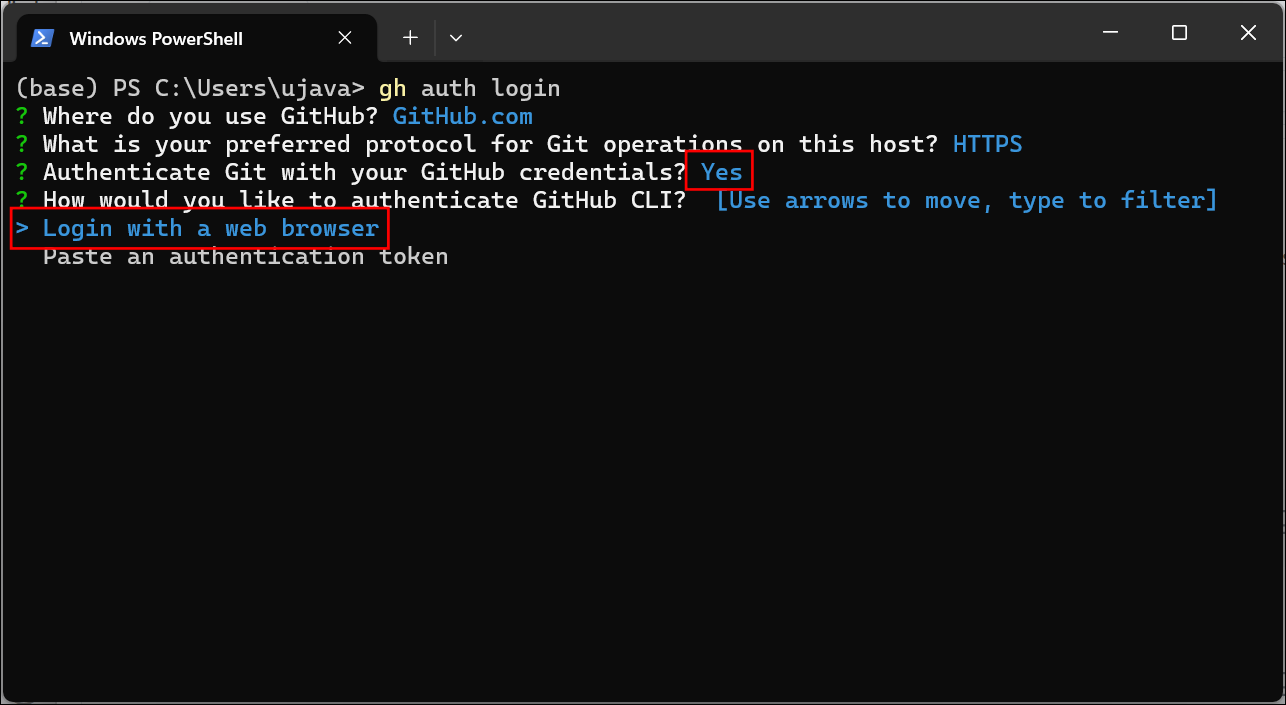
- You will be prompted to copy a code. Select the code and copy it. You will need it in the next step. Press Enter.
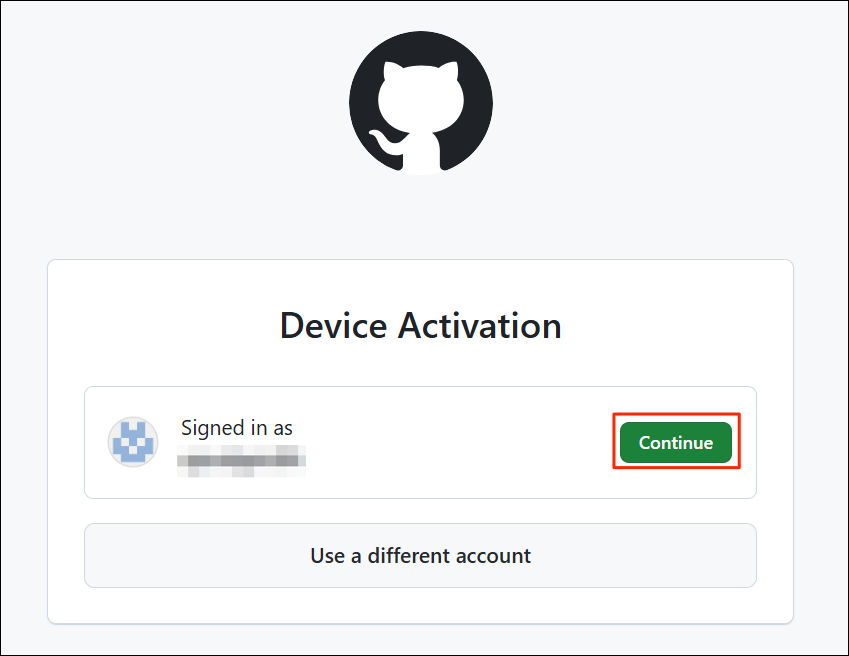
- A new browser tab will open and you will be prompted to sign-in to GitHub for Device Activation. Click Continue.
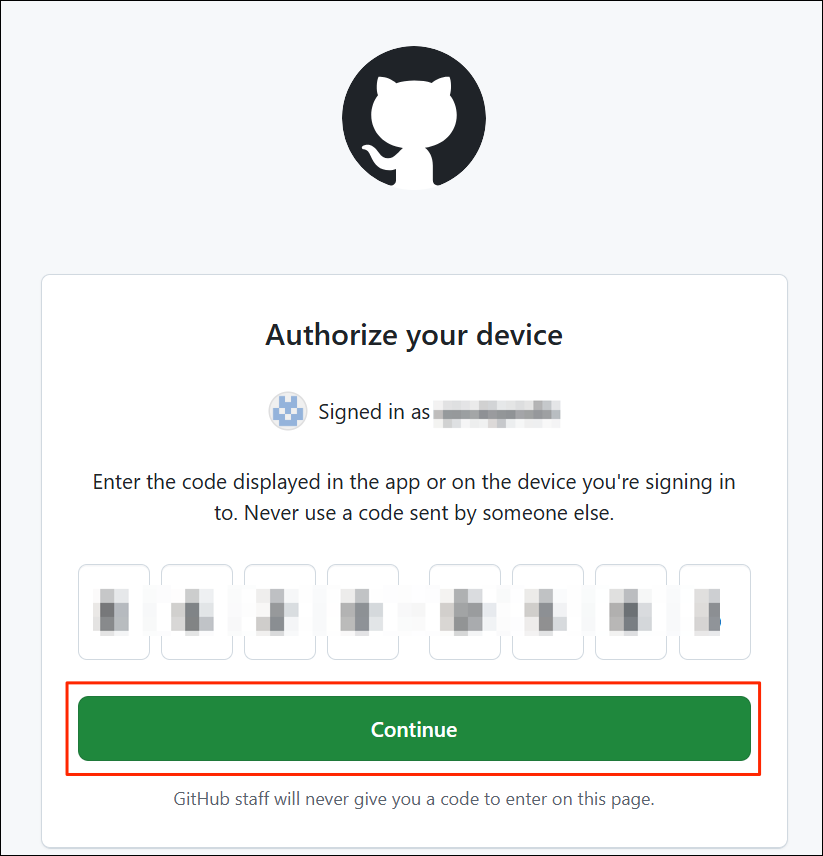
- In the next step, you will have will be prompted to Authorize your device. Paste the code and click Continue.
- Once completed, you can close the browser tab.
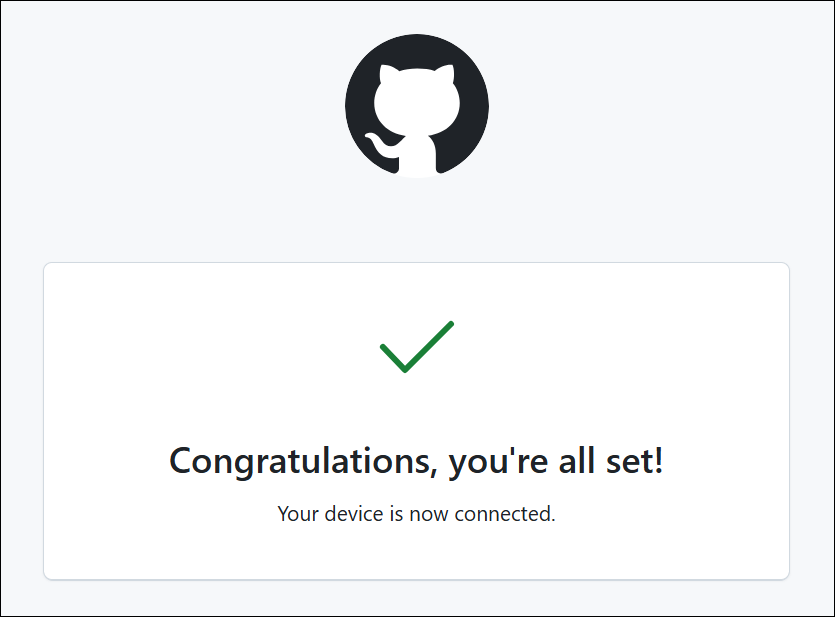
- Back in the Terminal, you should see a confirmation message.
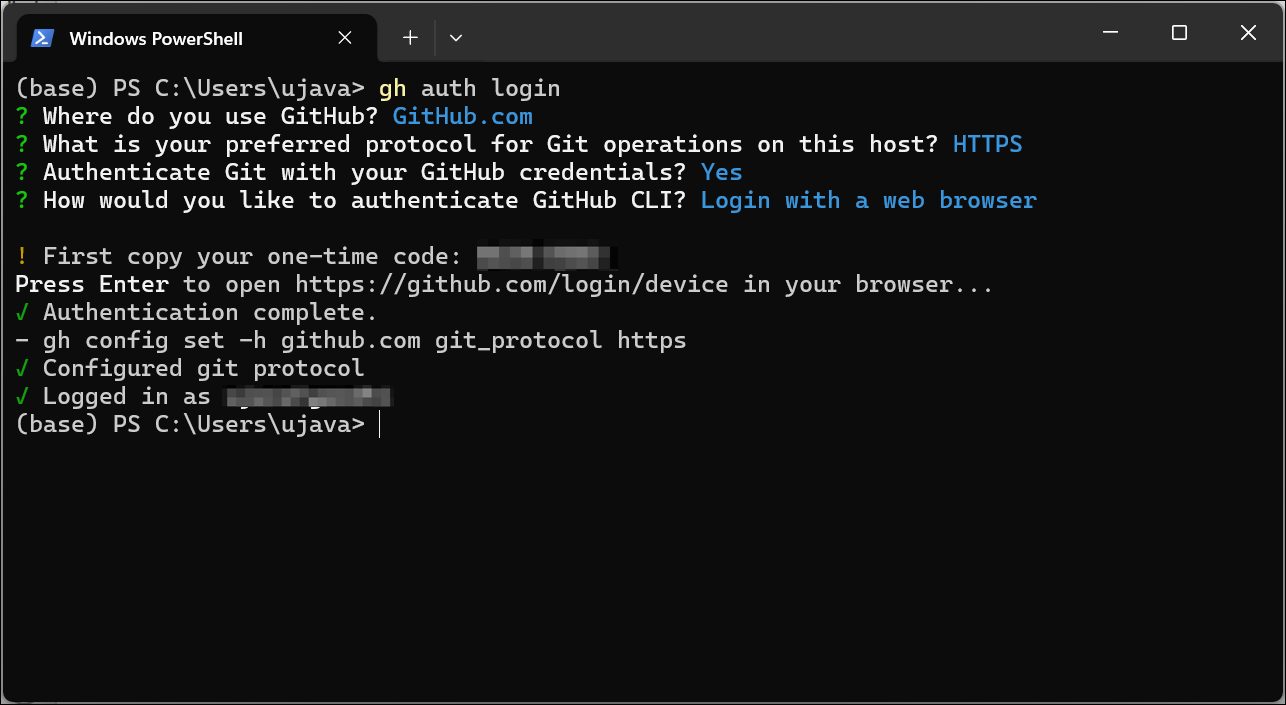
Your setup is now complete.
If you want to report any issues with this page, please comment below.